

Rates
Rates let you offer several prices and availability options on one Entry. A common example is a hotel room sold at a "Standard" rate, a cheaper "Non-refundable" rate and a "Breakfast included" rate, all sharing the same inventory.
REPLACES ADVANCED & CONNECTED AVAILABILITY
Rates are new in v6 and replace "Advanced availability" (per-entry properties) and "Connected availabilities" from v5. If you are upgrading, read Upgrading to v6.
What is a Rate?
A Rate belongs to a Statamic collection, not to a single Entry. It can apply to every Entry in the collection or only to the ones you pick. Each rate sets how it's priced and where its inventory comes from. It can also have restrictions, a cancellation policy and a booked units per add-on value for pricing extras and options.
Managing rates
Rates have their own Rates section under Resrv in the Control Panel.
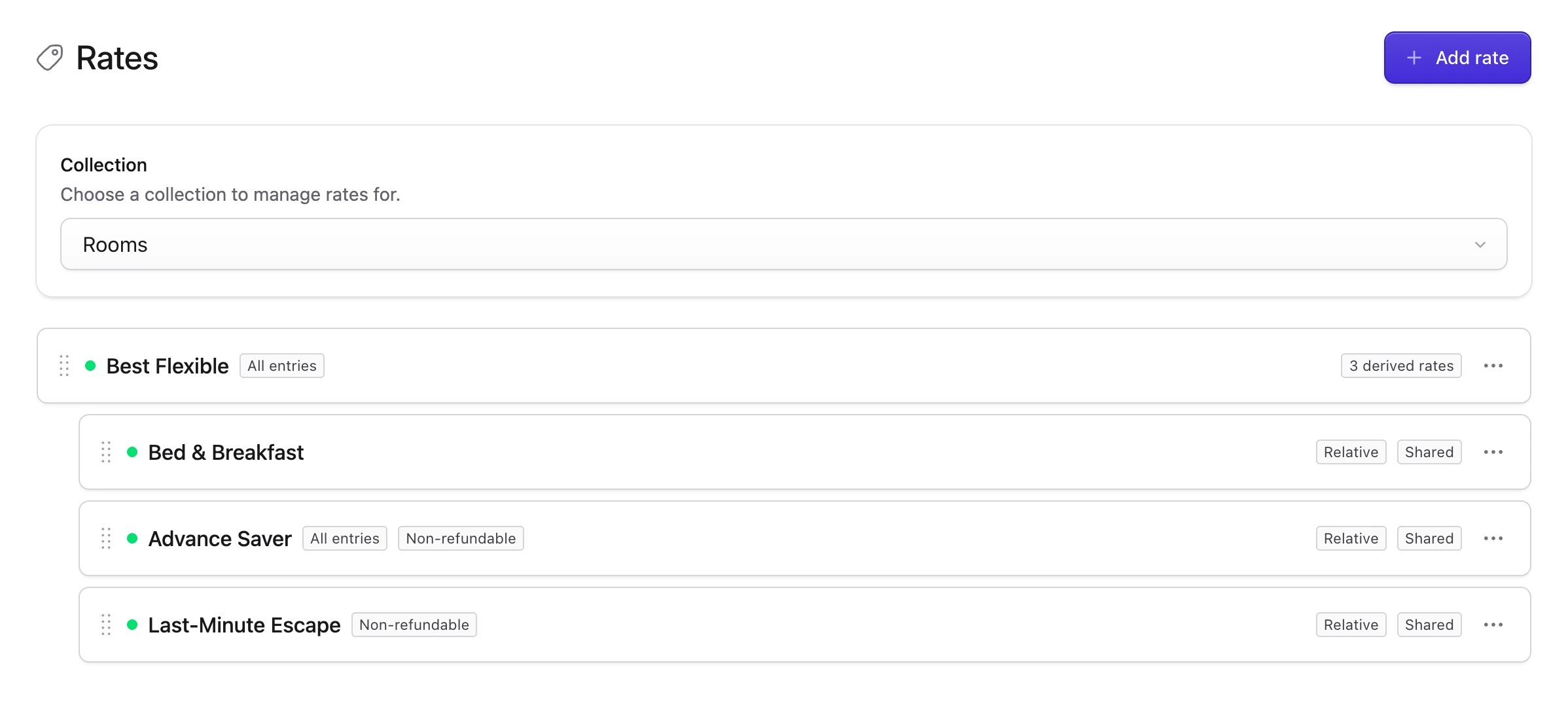
Pick a collection at the top. Only collections that use the Resrv Availability field are listed.
Base rates are listed first, with the rates derived from them indented underneath. Drag rates to reorder them within a level. Badges show whether a rate is published, applies to "All entries" or is "Non-refundable", and how many rates derive from it.
Click Add rate to create a rate, or a rate's title to edit it.
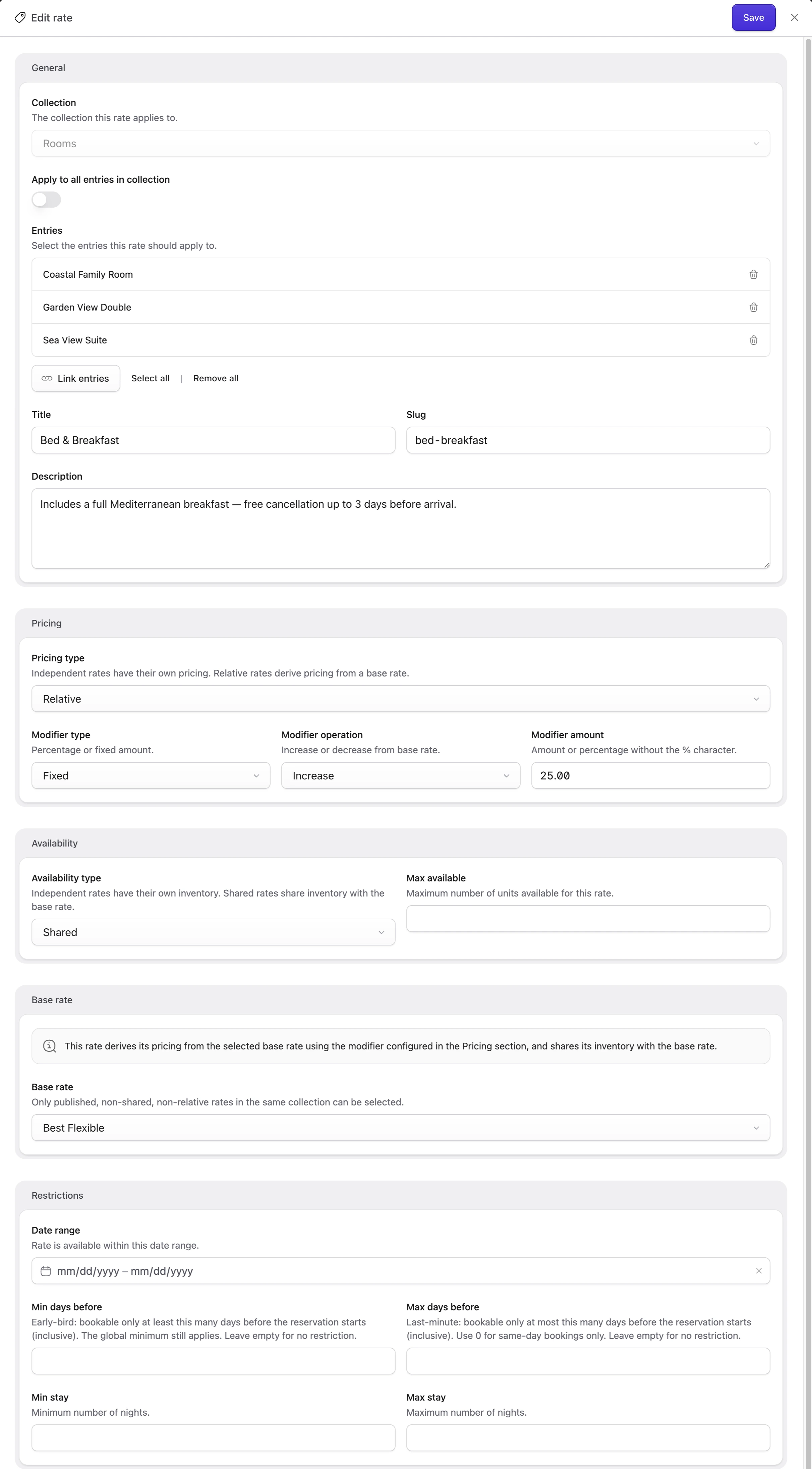
Apply to all vs specific entries
In the General section, turn on Apply to all entries in collection to offer the rate on every Entry. Turn it off to pick the Entries yourself. Select all and Remove all help with long lists.
You can't move a rate to another collection after you create it.
Pricing type
- Independent (default): the rate has its own per-day prices, which you set in the Entry's Availability calendar.
- Relative: the rate takes its prices from a base rate and applies a modifier.
A relative rate has three modifier fields:
| Field | Values | Description |
|---|---|---|
| Modifier type | Percent or Fixed | A percentage or a flat amount. |
| Modifier operation | Increase or Decrease | Raise or lower the base price. |
| Modifier amount | A number (no % character) | The amount or percentage. |
A Fixed amount applies per day, so it's multiplied by the number of nights. A Percent decrease is capped at 100, and no modifier can take a price below zero.
PRICING TYPE IS IMMUTABLE
You can't change the pricing type after you create a rate. To switch, delete the rate and create it again.
The base rate must be in the same collection, published, and an independent, non-shared rate.
Availability type
- Independent (default): the rate has its own inventory in the Availability calendar.
- Shared: the rate uses the base rate's inventory, so booking it reduces the base rate's availability. Use Max available to cap how many units can be booked on this rate.
A shared rate needs a base rate. It's the same field relative pricing uses.
AVAILABILITY TYPE IS IMMUTABLE
You can't change the availability type after you create a rate either. Delete and recreate the rate to switch.
The four configurations
| Pricing | Availability | Base rate | What it is |
|---|---|---|---|
| Independent | Independent | Not required | Own prices and own inventory. This is the default. |
| Relative | Independent | Required | Own inventory, price derived from the base rate. |
| Independent | Shared | Required | The base rate's inventory with its own prices (see below). |
| Relative | Shared | Required | The base rate's inventory and a price derived from it. |
Independent pricing on shared rates
A shared rate with independent pricing keeps its own prices. You set them per day in the Entry's Availability calendar, not in the Rates screen. Its inventory comes from the base rate and can't be edited.
Require price override controls dates where you haven't set a price for this rate:
- On: those dates are unavailable.
- Off: they use the base rate's price.
Restrictions
Restrictions limit when a rate can be booked. Every field is optional.
| Field | Description |
|---|---|
| Date range | The rate can only be booked within this window. Check-in must be on or after the start, and the booking must end on or before the end date. |
| Min days before | Early bird: book at least this many days before the reservation starts. The global minimum still applies. |
| Max days before | Last minute: book at most this many days before the reservation starts. Use 0 for same-day bookings only. |
| Min stay | Minimum number of nights. |
| Max stay | Maximum number of nights. |
Booked units per add-on
Extras and option values are priced per booked unit. Fixed and Per day prices are multiplied by the reservation quantity, so two rooms pay for two breakfasts. That doesn't work when a unit is smaller than what a guest actually books.
Booked units per add-on sets how many booked units count as one when pricing add-ons for a rate. You'll find it in the rate's Availability section, next to Max available. Leave it empty to price add-ons per booked unit.
Say a cruise sells cabins by the berth, so a 2-berth cabin is quantity 2. A single-occupancy rate books the whole cabin for one guest, and a fixed 350 port tax should be charged once. Set Booked units per add-on to 2 on that rate:
| Rate | Booked units per add-on | Booked quantity | Add-on quantity |
|---|---|---|---|
| Double cabin | (empty) | 2 | 2 |
| Single cabin | 2 | 2 | 1 |
| Single cabin (two solo cabins) | 2 | 4 | 2 |
| Single cabin | 2 | 3 | 2 |
The single cabin now pays 350 instead of 700, and two solo cabins pay 2 × 350. The result is rounded up, so quantity 3 with the field set to 2 prices add-ons for 2 units.
A few things to keep in mind:
- Only add-ons change. The cabin price, the inventory taken and the quantity stored on the reservation stay the same.
- When Ignore quantity for prices is enabled in your configuration, add-ons are never multiplied by quantity and this field does nothing.
- It applies to every Extra price type and to Fixed and Per day option values. Extras priced relative to the reservation price aren't divided again, because the reservation price already scales with quantity.
- In multi-cabin bookings it applies per cabin line, using that line's rate. A party of three in a double cabin (quantity
2, field empty) plus a single (quantity2, field2) pays3 × 350instead of4 × 350. - Add-on prices are stored on the reservation when it's booked, so changing the field only affects new bookings.
ADD-ONS SHOWN NEXT TO THE RESULTS
When Extras or Options are shown next to the availability results and the search has no rate (rates disabled, the default), they're priced against the rate the results will book. The results component passes it to them as effectiveRateId and with the availability-results-updated event, so selections are re-priced when the search or rate changes.
If you've customised availability-results.blade.php, pass :effectiveRateId="$this->effectiveRateId()" to <livewire:extras> and <livewire:options> so the first render is right. Without it, the prices correct themselves right after the page loads.
With rates enabled and several rates on offer, add-ons can't be priced until a rate is picked, so the stock results view only shows them after that.
Cancellation policy
Each rate can have its own policy in the Cancellation policy section, on top of the global free cancellation settings in your configuration.
The Cancellation policy select has three choices:
- Free cancellation until X days before (
free_cancellation): set the number of days in the Free cancellation period input that appears. - Non-refundable (
non_refundable): no free cancellation. The booking is always prepaid in full. - Use global default (leave empty): the rate uses the global
free_cancellation_periodsetting, as in v5.
Customers see the policy as a label on the availability results, the checkout sidebar, the reservation details and the confirmation email, like "Free cancellation until Mon 03 Jun 2026" or "Non-refundable". If no period is configured, there's no label.
NON-REFUNDABLE ALWAYS CHARGES IN FULL
Non-refundable rates always take full payment at checkout, whatever your deposit settings, even after a coupon is applied or removed.
The policy is saved on the reservation at booking time, so later changes to the rate or the global settings don't affect existing bookings. When a booking spans several rates, Resrv uses the strictest policy. If any part is non-refundable, the whole booking is.
Published flag & ordering
Turn off Published in the Settings section to hide a rate on the frontend while you prepare it.
Drag rates in the Rates list to set the order they appear in on the frontend rate selector.
DELETING RATES
You can't delete a rate while it's the base for another rate or has active reservations. Remove or reassign those first.
On the frontend
When an Entry has several published rates, the availability search component shows a rate selector. The availability results then show the price, availability and cancellation label for the chosen rate.
If no rate is selected, Resrv shows the cheapest available one.
Upgrading from v5
See Upgrading to v6 for the full migration and the resrv:upgrade-to-rates command, which converts your v5 "Advanced availability" properties and "Connected availabilities" into rates.