

Payment Gateways NEW
Resrv ships with Stripe for card payments and an Offline gateway for bank transfers or paying at the premises. You can also use Mollie or write your own gateway. From v6 you can offer several gateways at checkout, add a surcharge per gateway and limit a gateway to an order value range.
Configuring gateways
Gateways are set up in config/resrv-config.php, not in the Control Panel. Add one entry per gateway to the payment_gateways array:
// config/resrv-config.php
'payment_gateways' => [
    'stripe' => [
        'class'         => \Reach\StatamicResrv\Http\Payment\StripePaymentGateway::class,
        'label'         => 'Credit Card',
        'surcharge'     => ['type' => 'percent', 'amount' => 4],
        'amount_limits' => ['min' => 10, 'max' => 1000],
    ],
    'offline' => [
        'class' => \Reach\StatamicResrv\Http\Payment\OfflinePaymentGateway::class,
        'label' => 'Bank Transfer / Pay at Premises',
    ],
],| Key | Required | Type | Description |
|---|---|---|---|
class | Yes | FQCN | The gateway class. It must implement PaymentInterface, or the app throws an error at boot. |
label | No | String | The label in the checkout picker. Defaults to the gateway's own label(). |
surcharge | No | Array | See Surcharges. |
amount_limits | No | Array | See Amount limits. |
TIP
The array key (stripe, offline) is the gateway's name. It's used in the webhook URL and the resrv_gateway redirect parameter, so keep it lowercase with no spaces.
The default gateway
The first entry in payment_gateways is the default gateway. Resrv uses it for any reservation with no gateway recorded, such as reservations made before you added the config.
Legacy single-gateway fallback
If payment_gateways is empty, Resrv uses the old payment_gateway key, which defaults to Stripe:
// config/resrv-config.php
'payment_gateway' => \Reach\StatamicResrv\Http\Payment\StripePaymentGateway::class,
Existing single-gateway sites keep working as before, bare webhook URL included.
The Offline gateway
The bundled OfflinePaymentGateway (offline) is for bookings paid outside the site, by bank transfer or at the premises. It doesn't connect to any provider.
The customer sees a description, the amount due and a Confirm reservation button. Pressing it confirms the reservation and fires the ReservationConfirmed event, so the confirmation email goes out right away. The checkout complete page then shows a pending status.
'offline' => [
    'class' => \Reach\StatamicResrv\Http\Payment\OfflinePaymentGateway::class,
    'label' => 'Bank Transfer',
],
TIP
The description, amount label and button text are translation keys (offlinePaymentDescription, offlinePaymentAmount, confirmReservation and others). See Languages.
Resrv can't know if the customer paid, so from v6.5.0 the Control Panel shows the amount of these bookings as Payment rather than as paid. Refunding one only records the refund. If the customer did pay, you return the money yourself.
For manual reservations, the offline gateway shows your Offline Payment Instructions (Resrv → Settings → Checkout → Manual reservations) on the payment page and in the payment request email. You confirm the booking with Mark as paid once the money arrives. See Gateways for manual reservations.
Surcharges
A surcharge is added to the payment when the customer picks that gateway, for example to pass on card fees. Set a type and an amount:
// 4% on top of the amount payable now
'surcharge' => ['type' => 'percent', 'amount' => 4],

// A flat 2.50 in your currency's major units
'surcharge' => ['type' => 'fixed', 'amount' => 2.50],| Type | amount means | Example |
|---|---|---|
percent | A percentage of the payment | 4 adds 4% |
fixed | A flat amount in major currency units | 2.50 adds 2.50 |
Any other type throws an error at checkout.
The surcharge is calculated on the reservation's payment (the amount payable now). The gateway charges payment + surcharge. The surcharge itself is stored separately in the payment_surcharge column and shown in the totals. The checkout picker shows it next to the gateway label, for example (+4% surcharge) or (+ €2.50 surcharge).
Amount limits
Amount limits restrict a gateway to an order value range. Set min, max or both:
'amount_limits' => ['min' => 10, 'max' => 1000],
'amount_limits' => ['min' => 50],   // no upper bound
'amount_limits' => ['max' => 500],  // no lower bound
Both limits are inclusive (payment >= min and payment <= max) and are checked against the reservation's payment, before any surcharge. A gateway outside its range is hidden from the picker.
If no gateway is left, checkout shows the noGatewayAvailableForAmount error and can't continue, so make sure your ranges cover every possible total. Free reservations (payment is 0) skip the payment step, so limits don't apply (see Skipping payment).
BOOT-TIME VALIDATION
amount_limits must be an array with only min and max keys, each a valid amount, and min can't be greater than max. Otherwise the app throws an error at boot.
The checkout gateway picker
When more than one gateway is available, the payment step lists them by label, with any surcharge, under a "Select payment method" heading. If only one is available, it's selected for the customer and there's no picker.
See Checkout for the full flow and how to customise the checkout views.
Gateways for manual reservations NEW
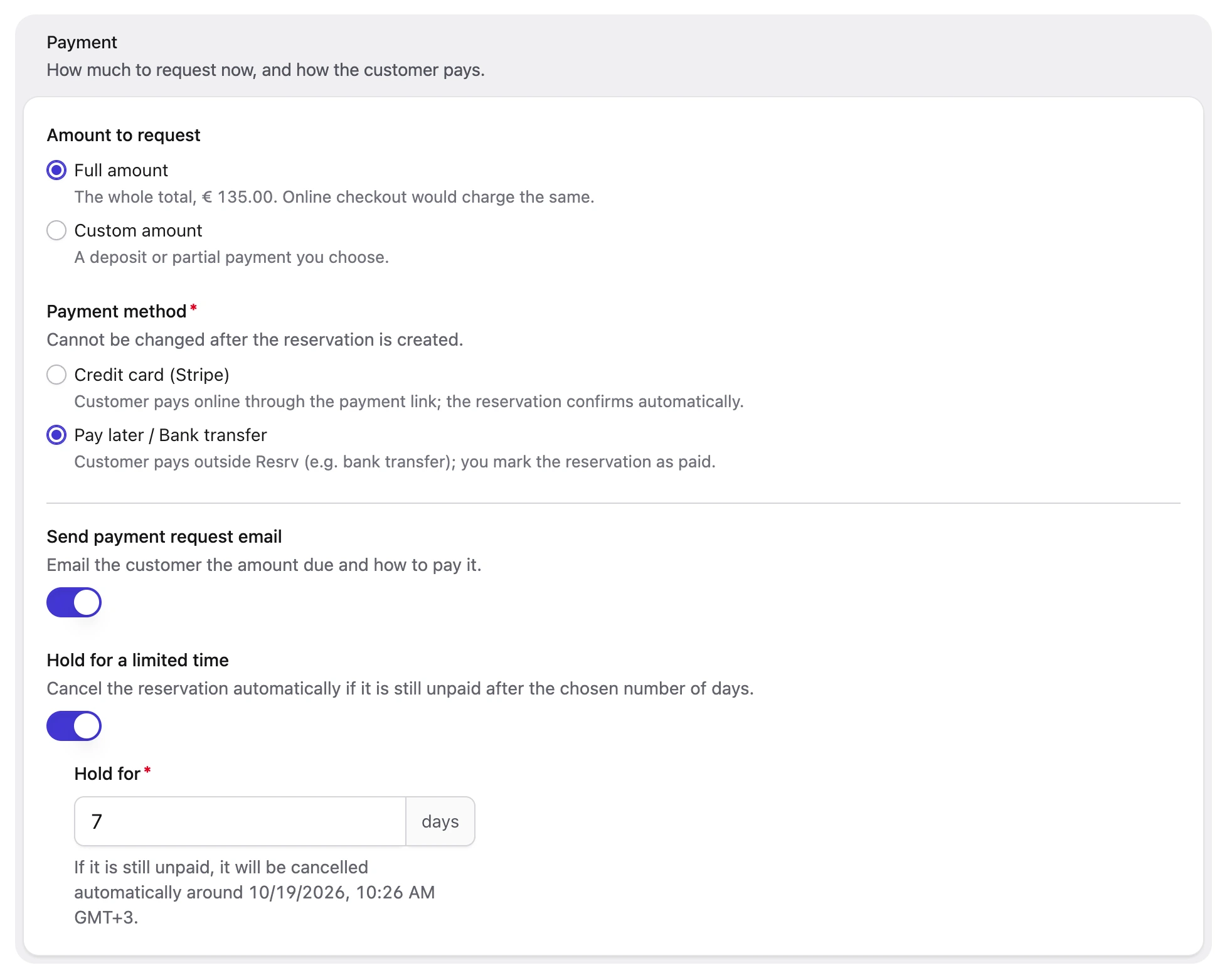
From v6.5.0 you can create reservations in the Control Panel and ask the customer to pay. The same gateways collect those payments, with a few differences:
- You choose the Payment method when you create the reservation and can't change it later. The customer gets no picker.
- The Create reservation page lists every configured gateway. Gateways that can't take the payment are disabled, with the reason shown.
- Online gateways need a payment page, since the customer pays from the link in the payment request email. They stay disabled until you select a published entry under Resrv → Settings → Checkout → Manual reservations → Payment Page Entry.
- Online gateways need their webhook route, because the webhook is what confirms the payment. A gateway whose
supportsWebhooks()returnsfalsecan't collect a payment. - The Offline gateway, or any gateway whose
supportsManualConfirmation()returnstrue, doesn't need a payment page. It does need to be inpayment_gateways, as the default config only has Stripe. You confirm these bookings with Mark as paid. - If the amount to request is zero, the Payment method field is hidden and the reservation is confirmed straight away.
- Amount limits apply to the amount you request. A gateway outside its limits is disabled.
- Surcharges are calculated on the amount you request and saved when you create the reservation. The payment page and the payment request email show the Amount to pay with the surcharge included. That's what the gateway charges and what Mark as paid records.
NO MANUAL-ONLY GATEWAYS
Every gateway in payment_gateways is offered both at checkout (within its amount limits) and on the Create reservation page. If you add the Offline gateway for manual bookings, website customers can also choose it at checkout, where it confirms the booking immediately without payment.
A booking paid from the payment page refunds through its gateway. For a booking you marked as paid, Resrv only records the refund and you return the money yourself. See Refunds and reconciliation.
Webhook routes
Each gateway has its own webhook URL:
| Route | Resolves to |
|---|---|
/resrv/api/webhook/{gateway} | The gateway whose config key is {gateway} |
/resrv/api/webhook | The default gateway (single-gateway sites only) |
Each route accepts GET and POST and is exempt from CSRF protection. They also confirm payments made from the payment page of a manual reservation.
MULTIPLE GATEWAYS REQUIRE THE PER-GATEWAY URL
Once you configure more than one gateway, the bare /resrv/api/webhook URL returns a 404, because Resrv can't tell which gateway a notification is for. Point each provider at its own /resrv/api/webhook/{gateway} URL, for example /resrv/api/webhook/stripe.
Single-gateway sites can keep using the bare URL.
See Stripe for setting up the Stripe webhook and its signing secret.
Redirect vs inline gateways
Inline gateways, like Stripe and Offline, show their payment form on the checkout page. Redirect gateways send the customer to the provider's payment page, and Resrv adds a resrv_gateway=<config-key> parameter to the redirect URL.
When the customer returns, your checkout complete page (the one with the {{ resrv_checkout_redirect }} tag) works out which gateway handled the payment. It checks the reservation's stored gateway first, then the resrv_gateway parameter, then the default. It then shows a success, failed or pending status. See Checkout for details.
For a manual reservation, the customer returns to the payment page instead, since Resrv passes the payment link as the return URL (see The return URL). The page shows a "Payment processing" message until the webhook confirms the booking. Inline gateways show their form on the payment page itself.
Cancelling abandoned payments
When a customer leaves the payment step, switches gateway or reopens an expired checkout, Resrv cancels the old payment intent at the provider. Provider errors during cancellation are logged and ignored, so they never block checkout.
Manual reservations work differently, because the customer may still be paying from the link. When you cancel one, mark one as paid, or the lapsed-hold sweep cancels one, Resrv cancels any open intent and checks the result with the provider. It forgets the payment reference only once the provider confirms the intent is dead. If money has moved, or Resrv can't confirm, it keeps the reference and warns your admins. See Reconciliation alerts.
The offline gateway has nothing to cancel. If you build your own gateway, cancelling is part of PaymentInterface. See the Custom payment gateway guide.
Related
- Stripe: set up the default card gateway.
- Mollie: a maintained redirect gateway add-on.
- Custom payment gateway: build your own gateway against
PaymentInterface. - Checkout: where gateways appear in the booking flow.
- Manual reservations: create bookings in the Control Panel and request a payment.
- Payment page: where customers pay for manual reservations.
- Configuration: the rest of the developer config keys.
- Languages: translate payment-related labels and messages.