

Manual Reservations NEW
Manual reservations let you create a booking from the Control Panel, for example one taken by phone. Resrv prices it like checkout, holds the availability and emails the customer a link to a payment page. You can also set a payment deadline, after which an unpaid booking cancels itself.
Any user with the Use Statamic Resrv permission can create and manage them.
NEW IN v6.5
If you are upgrading an existing site, run the migrations and update any custom payment gateways first, as described in Upgrading.
When to use manual reservations
Use one whenever a booking doesn't come through your website's checkout:
- The customer books by phone or email and pays online later.
- The customer pays by bank transfer or on arrival, and you confirm the booking when the money arrives.
- You need a custom price, a deposit of your choice, or a booking on dates that are already full.
- The booking is complimentary. It collects nothing and is confirmed immediately.
Online and offline payment methods
A manual reservation that collects money uses one of your payment gateways, which you pick when you create it. Gateways fall into two groups:
| Online methods (e.g. Stripe) | Offline methods (e.g. the Offline gateway) | |
|---|---|---|
| How the customer pays | On your payment page, through the emailed link. | Outside Resrv, for example by bank transfer, following your Offline Payment Instructions. |
| How the booking is confirmed | Automatically, by the gateway's webhook. | By you, with Mark as paid. |
| What you need | A Payment Page Entry, and a gateway that confirms payments through webhooks. | A gateway that supports manual confirmation (e.g. Offline) in payment_gateways. No payment page needed. |
Online payments are confirmed only by the gateway's webhook. Without a working webhook, a reservation paid by card stays Awaiting payment. See Webhook routes, Setup the webhook for Stripe, and Gateways for manual reservations.
GATEWAYS ARE SHARED WITH CHECKOUT
Every gateway in payment_gateways is offered at checkout (within its amount limits) and on the Create reservation page. If you add the Offline gateway for manual bookings, website customers can choose it at checkout too, where it confirms the booking without payment.
Before you start
- Set up the payment page if customers will pay online. See Setting up the page. Until you do, online payment methods are disabled.
- Register an offline payment method if customers will pay by bank transfer or on arrival. The default config only has Stripe, so add the Offline gateway, or another gateway whose
supportsManualConfirmation()returnstrue, underpayment_gatewaysinconfig/resrv-config.php. - Optionally add Offline Payment Instructions, such as your bank details, in the same settings section. See Offline payment methods.
- Schedule the lapsed-hold sweep if you will use payment deadlines. See The lapsed-hold sweep.
- Use a cache store that supports locks (
apcdoesn't), or every online payment fails. See Cache store with lock support. - Update your payment gateways for v6.5. Custom gateways and the Mollie (
reachweb/resrv-payment-mollie) or PayPal (reachweb/resrv-payment-paypal) add-ons must support the v6.5 payment interface. See Writing a custom payment gateway and the add-on note in Upgrading.
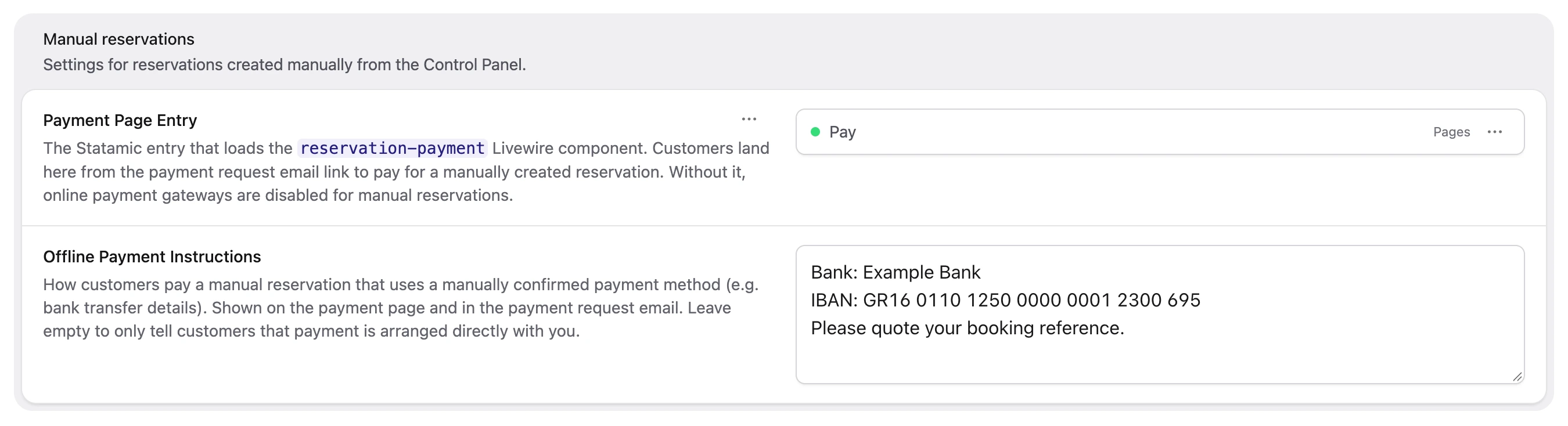
The rest of the Checkout tab is covered in Configuration.
Creating a reservation
Click Create reservation at the top of the Reservations listing. Choose an entry and dates first, and the rest of the form appears as you go. Every change re-prices the booking on the server with the same code as checkout. If the price can't be calculated, the Summary on the right marks its figures Out of date.
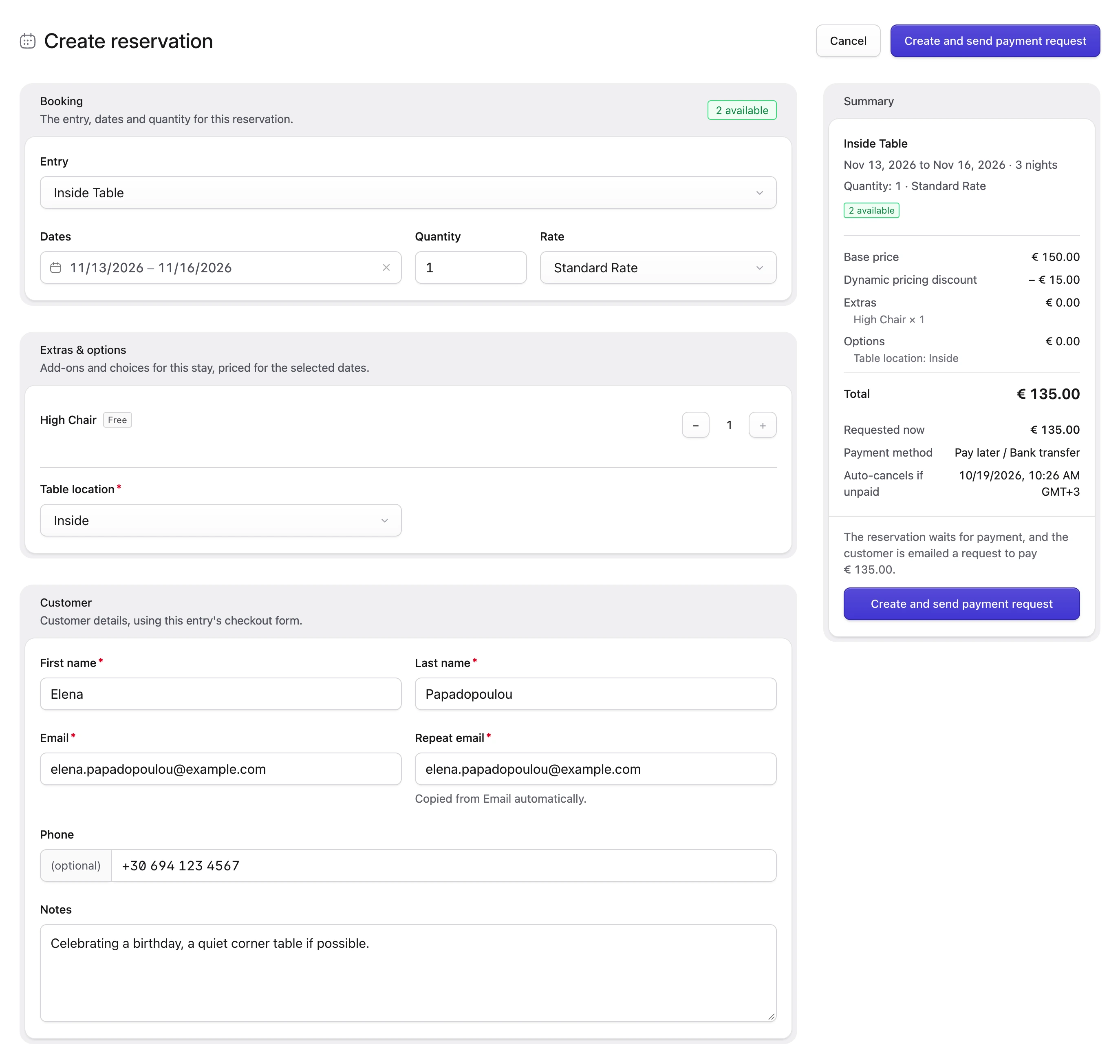
Booking
Search for the Entry to book. Only entries with reservations enabled are listed.
The Dates calendar starts at today plus your Minimum days before setting, and the stay must fit your minimum and maximum reservation period. When Maximum reservation period (in days) is 1, you pick a single Date instead. Quantity only appears when Maximum quantity is above 1.
Rate defaults to the entry's first published rate. Its restrictions still apply, so dates it doesn't allow show as Not available even when stock is free. Choose another rate. With Overbook anyway, creating the reservation fails with "The selected rate does not allow these dates."
Every night needs availability and a price on the entry. If one is missing, the dates field says so and links to the entry.
Availability and overbooking
Once the dates are set, a badge shows the number available, Not available, Will overbook, or Availability not decreased when Decrease availability is off.
When there isn't enough stock, an Overbook anyway button appears. It turns off Decrease availability under Advanced, and Undo switches it back on.
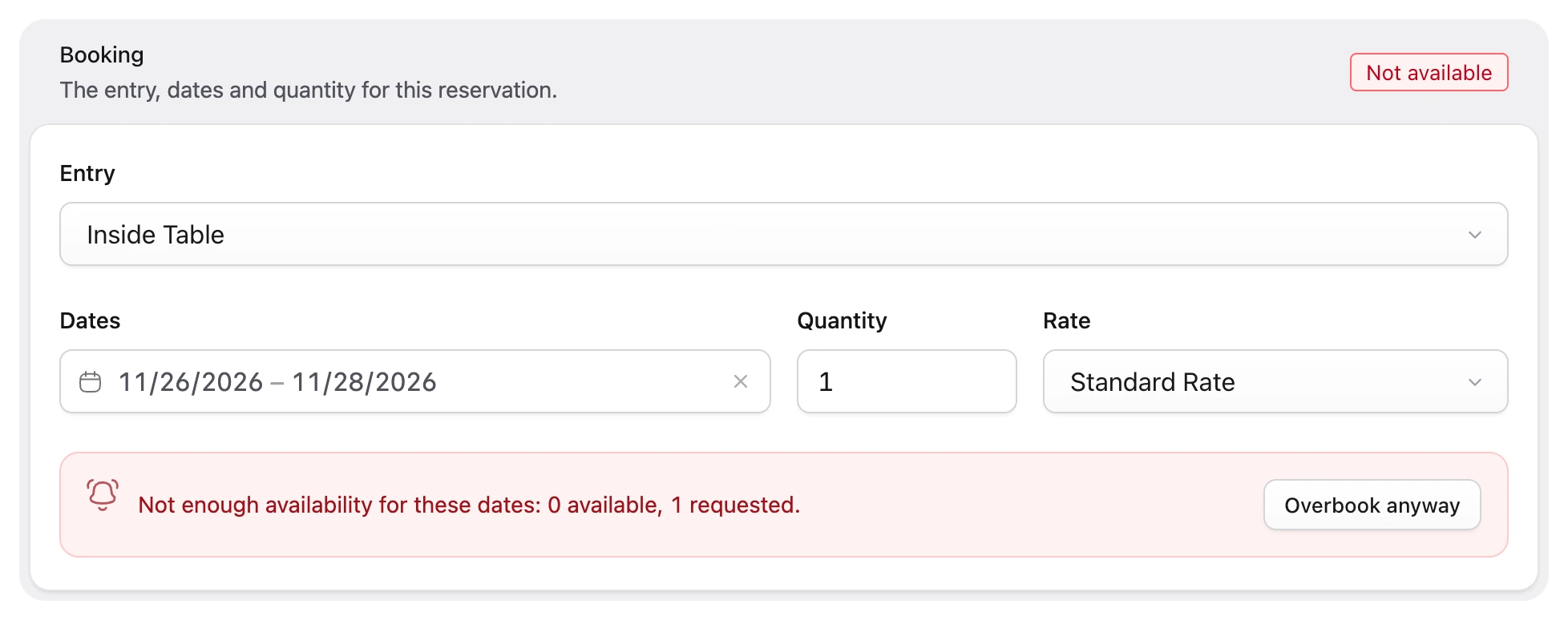
Overbooking skips only the stock check and a shared rate's Max available cap. Every other rule above still applies. An overbooked reservation is view-only.
Extras and options
The Extras & options section appears once the dates are set, if the entry has any. They're priced as at checkout, and extras priced from a checkout form field update as you fill in the customer details. Extras that extra conditions make required get a Required badge and the reason.
You can't create the reservation until every required extra and option is set. The Summary lists what's missing.
Customer details
The Customer section renders the entry's checkout form, chosen as at checkout (see Choosing the checkout form), with its validation rules. The email address is always required, since the payment request goes there. Supported field types are text, textarea, select, checkboxes, radio, toggle, integer and dictionary. Hidden fields aren't shown.
If you switch entries, values carry over to fields the new form also has.
Pricing
The Summary itemises the price, and dynamic pricing applies as at checkout. There's no coupon field, and a coupon in your own browser session is ignored, so dynamic pricing that needs a coupon doesn't apply. To charge a different price, use Override total under Advanced.
Amount to request
Amount to request sets how much the customer pays now:
- Checkout amount is what online checkout would charge under your Payment type setting, capped at the total. It's the full total for a non-refundable rate, or when Require full payment if free cancellation has passed applies.
- Full amount is the whole total.
- Custom amount is a deposit or partial payment, above zero and up to the total.
When checkout would charge the whole total anyway, you only see Full amount. Whatever you don't request shows as Balance not collected now, and the customer sees it as not included in this payment.
When there's nothing to request, the booking is confirmed immediately and the payment method and hold fields are hidden. To make a priced booking complimentary, turn on Override total and enter 0. This only works when no priced extras or options are selected.
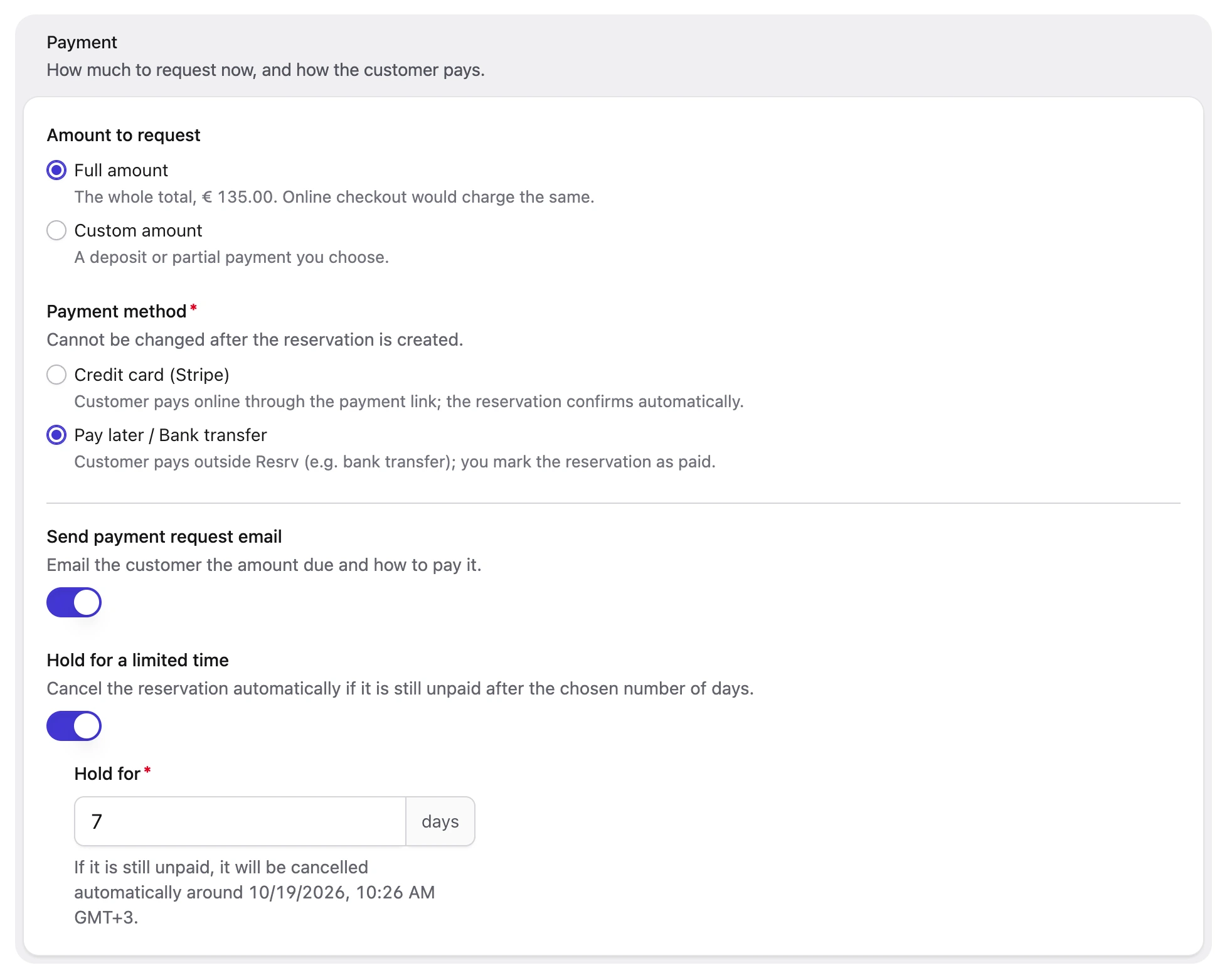
Payment method
Choose how the customer pays. The method can't be changed later. Methods you can't use are disabled, with the reason, when:
- the method can confirm neither through webhooks nor manually;
- it's an online method and no payment page entry is configured;
- the amount is outside the method's amount limits.
A gateway surcharge is calculated on the requested amount and added in the Summary.
Emailing the customer
Send payment request email is on by default. It emails the customer the amount due, with a Pay now button for online methods or your instructions for offline ones. Turn it off if you'll share the link yourself. You can still send the request later from the reservation.
When the booking collects nothing, the switch becomes Send confirmation email and controls only the customer's confirmation. Your admins are notified either way.
Hold for a limited time
Turn on Hold for a limited time to cancel the reservation automatically if it's still unpaid after a number of days. Set them in Hold for (1 to 365, default 3), counted from when you create the reservation. If the hold would end after the arrival day, a warning suggests a shorter one. See Payment deadlines.
Without a hold, the reservation stays Awaiting payment until it's paid or you cancel it. Automatic cancellation needs the lapsed-hold sweep.
Advanced
The Advanced section is collapsed by default.
Override total replaces the computed total with a New reservation total. The difference goes on the base price, so the new total can't be lower than the extras and options together. Dynamic pricing isn't recorded on an overridden booking, and Checkout amount applies your payment rule to the new price.
Decrease availability is on by default. Turn it off to create a view-only reservation.
Affiliate credits the reservation to one of your published affiliates, with the commission calculated as at checkout. It only appears when Enable affiliates is on and you have published affiliates.
The Summary and the Create button
A sentence above the button spells out what will happen, and the button is labelled to match:
| Button | When |
|---|---|
| Create and send payment request | The booking collects a payment and the email switch is on. |
| Create without emailing | The booking collects a payment and the email switch is off. |
| Create and confirm | The booking collects nothing. |
While something is missing, the button is disabled and a hint says what to fix.
After creating, you land on the new reservation. If the payment request couldn't be emailed, for example because the Customer payment request event is disabled, a message says so. Fix the cause, then send it from the reservation.
Safe submits
Resrv recalculates everything when you click create. If the total or the amount to request changed since the page showed it, nothing is created and you're asked to review the new figures.
A double click or a retry from the same page never books twice. If an earlier attempt already created the reservation, you're taken to it. If you changed the form since, you choose between Open the existing reservation and Create a separate reservation.
What happens when you create it
If it collects a payment, it's created as Awaiting payment and takes the booked stock, unless it's view-only. The customer gets the payment request if the email switch was on, and the confirmation emails follow once it's paid.
If it collects nothing, it's confirmed straight away. The customer gets the usual confirmation email (if Send confirmation email was on) and your admins the new reservation email.
The reservation page shows who created it under Created by.
The Awaiting payment status
Awaiting payment (awaiting_payment) is the status of a manual reservation waiting for its payment. It holds availability like a confirmed booking, unless it's view-only.
Minutes to hold doesn't apply to it. It never becomes Expired, gets no abandoned-reservation emails, and housekeeping never purges it.
It can only become Confirmed (through the gateway webhook or Mark as paid) or Cancelled (by you or the lapsed-hold sweep). Nothing was collected, so it can't be refunded. Cancel it instead.
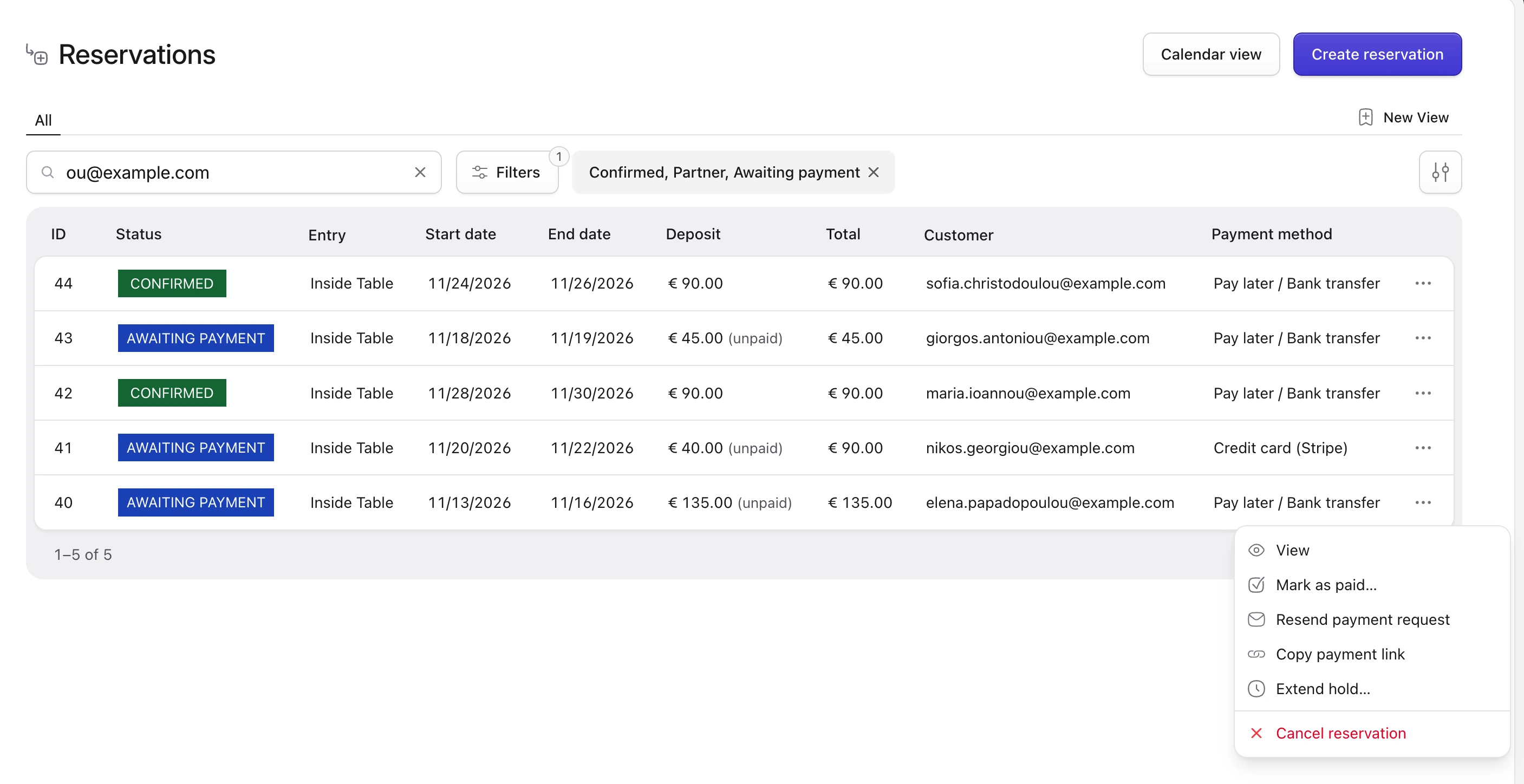
The status filter in the Reservations listing now defaults to Confirmed, Partner and Awaiting payment.
Managing awaiting-payment reservations
In the reservations list
Awaiting-payment rows show their amount as "(unpaid)". Once the customer can no longer pay through the link, a red Hold expired or Arrival date passed badge appears (see Overdue reservations).
The row menu offers:
- Mark as paid… for offline methods, or Mark as paid manually… for online methods
- Send payment request, or Resend payment request once one was sent, until the payment window closes
- Copy payment link, while a link exists and the payment window is open
- Extend hold…, until the arrival day has passed
- Cancel reservation
Refund and Resend confirmation email aren't offered.
On the reservation page
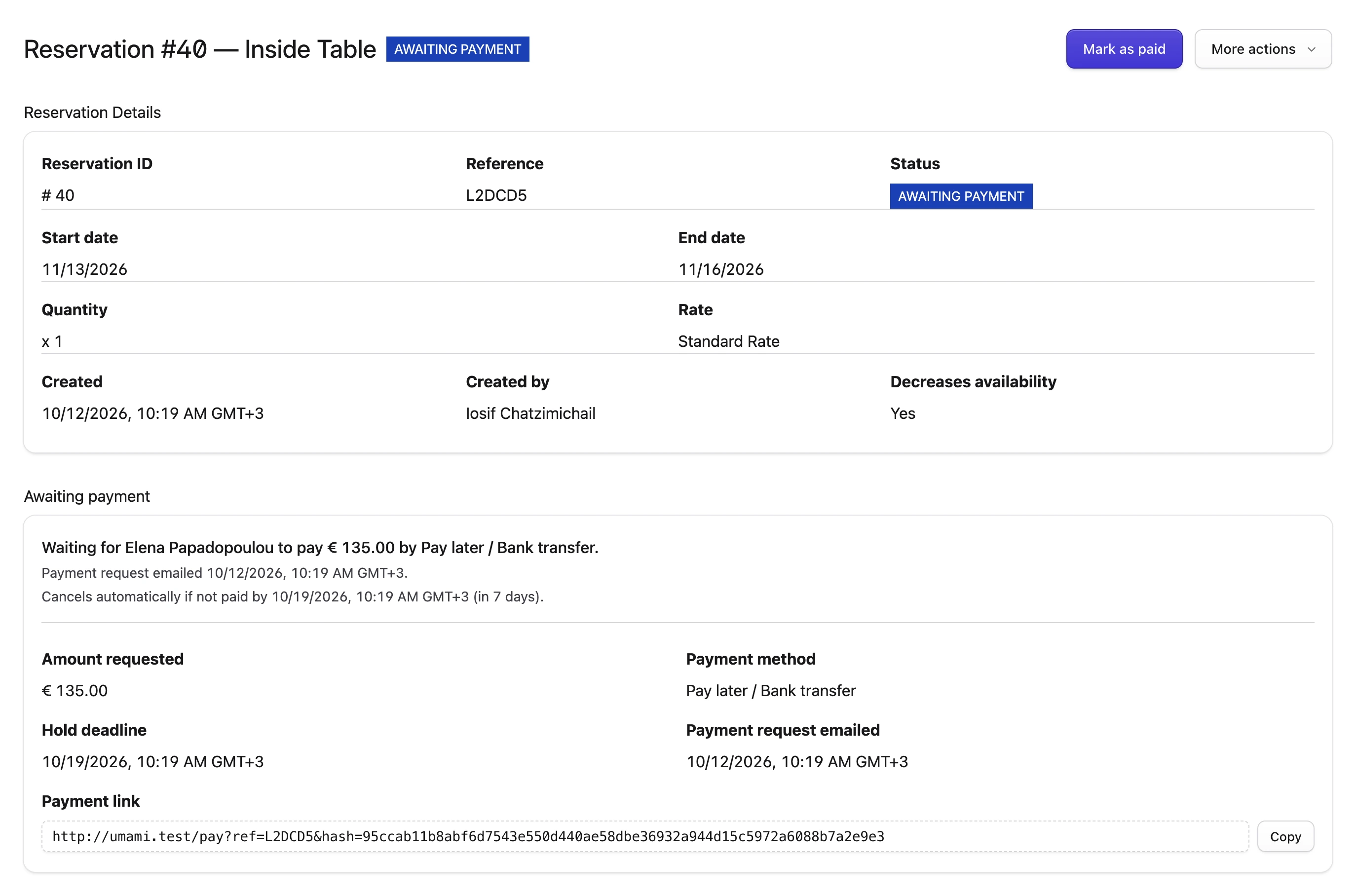
The page has an Awaiting payment section with the amount requested, the payment method, the deadline, when the request was emailed, and the Payment link. Created by and Decreases availability appear in the Reservation Details.
The primary button is Mark as paid for offline methods and Send payment request for online ones. Once the hold has expired it becomes Extend hold, and after the arrival date, Mark as paid. The other actions are under More actions.
Mark as paid
Use Mark as paid when the customer paid you outside Resrv, for example by bank transfer. The reservation becomes Confirmed, with the requested amount and any surcharge recorded as received. The usual confirmation emails go out, with "Amount already paid" in place of "Already paid by credit card", and the payment link stops accepting payments.
For online methods the action reads Mark as paid manually… and also cancels any online payment the customer started. If they had already paid online, Resrv keeps that payment and alerts your admins about a possible duplicate (see Refunds and reconciliation).
You can mark a reservation as paid any time it's awaiting payment, even after its deadline or arrival date.
Send or resend the payment request
Send payment request emails the customer. After the first send it reads Resend payment request, and each send is recorded under Payment request emailed. Resrv refuses to send it when:
- the payment window has closed;
- the customer has no valid email address;
- the Customer payment request email event is disabled (unlike Resend confirmation email, this action respects that switch);
- the reservation uses an online method and the payment page entry isn't configured or published, or its payment method is no longer configured.
If sending fails, check your mail settings.
Copy the payment link
Copy the link from the Payment link field on the reservation page, or with Copy payment link in the listing. It opens the payment page without a login, so share it only with the customer (see The payment link).
A link exists only while the reservation is awaiting payment, a usable payment page entry is configured, and the customer has an email address. Once the payment window closes, the CP stops offering it. A link the customer already has still opens a page explaining the reservation's state (see What the customer sees).
Extend hold
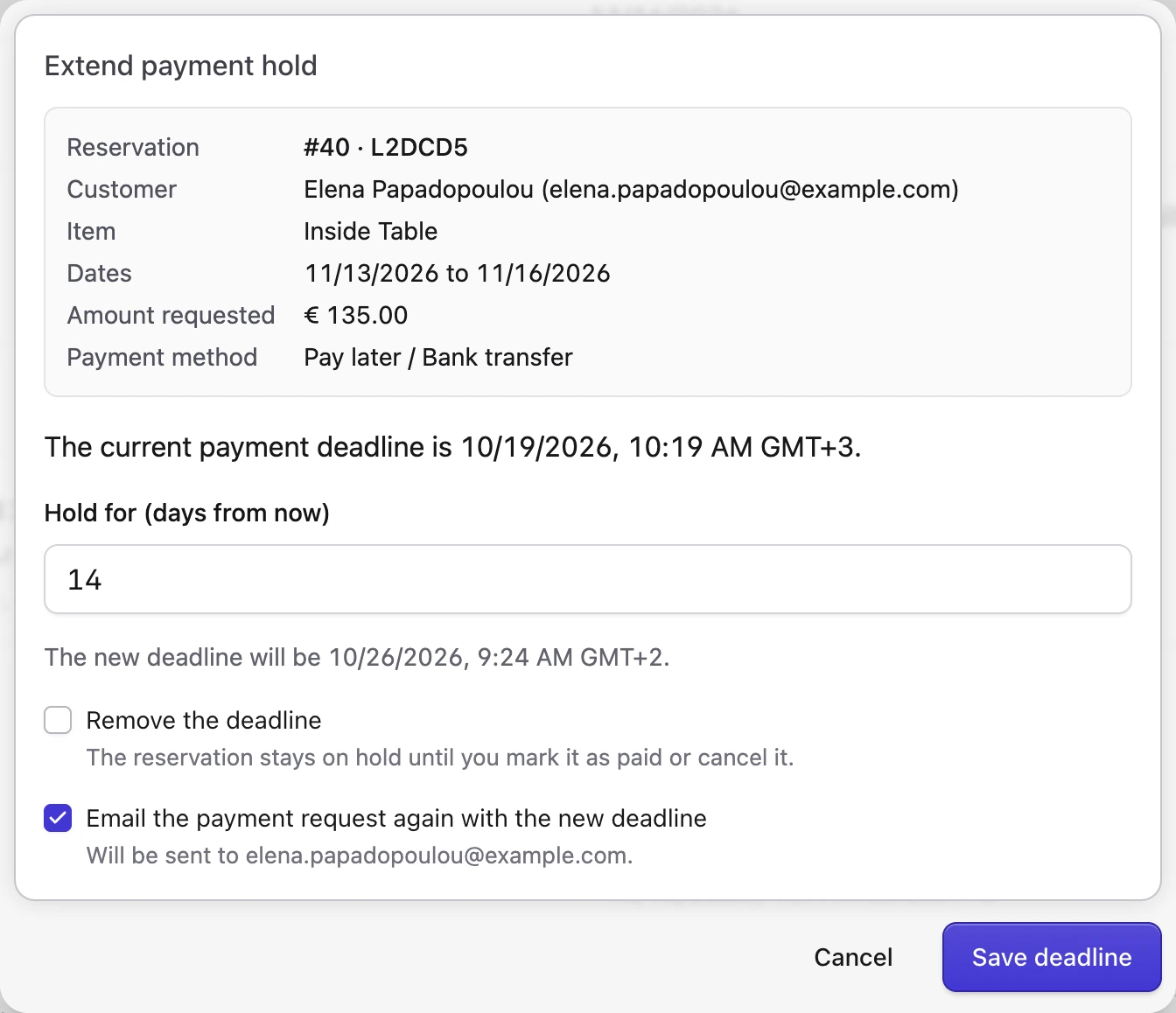
Extend hold… opens the Extend payment hold dialog. Set Hold for (days from now) (1 to 365), or tick Remove the deadline to keep the reservation until you mark it as paid or cancel it. You can also add a deadline to a reservation that has none.
A checkbox such as Email the payment request again with the new deadline resends the request. It's ticked by default only if a request was sent before.
Extending works after the deadline has passed, until the sweep cancels the reservation. It isn't offered once the arrival day has passed.
Cancel reservation
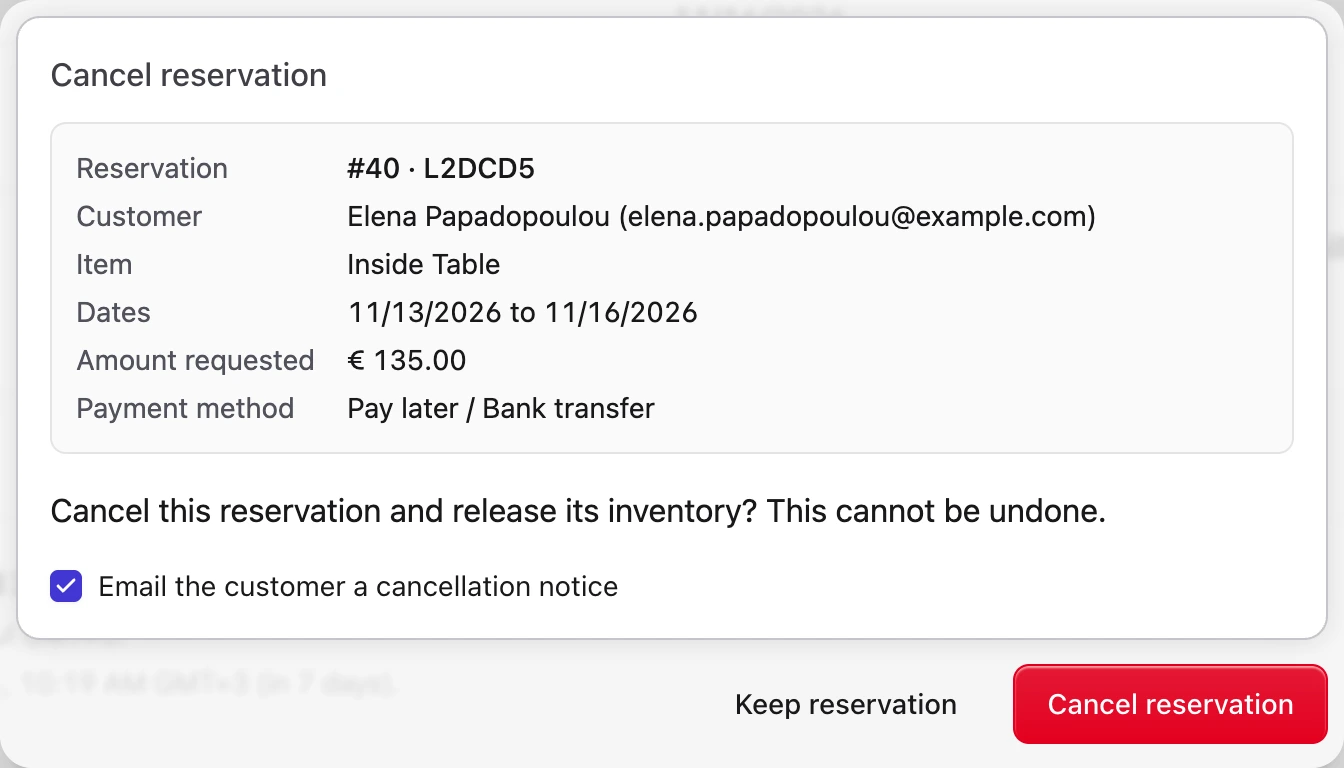
Cancel reservation moves an unpaid reservation to Cancelled, releases its stock and voids any affiliate commission. Any online payment the customer started is cancelled with the provider.
Email the customer a cancellation notice is ticked by default only if a payment request was emailed. The notice says nothing was collected. Your admins aren't emailed.
If the customer's online payment was already going through, they're emailed anyway (unless the Customer cancelled (no refund) event is disabled) and told the charge will be refunded. Resrv doesn't refund it automatically. See Refunds and reconciliation.
Overdue reservations
An overdue reservation gets a red badge in the listing and a warning on its page.
Hold expired — will be cancelled by the next sweep means the hold deadline has passed and the payment link no longer works. Extend the hold, mark it as paid or cancel it. Otherwise the sweep cancels it.
Arrival date passed means the customer can no longer pay through the link, and nothing cancels the reservation automatically. Mark it as paid or cancel it.
Payment deadlines
Online payment closes at whichever comes first:
- The hold deadline, if you set one. The link and the send action stop working, and the lapsed-hold sweep then cancels the reservation.
- The end of the arrival day, in your app's time zone, for every reservation. Same-day bookings stay payable until the end of that day. Nothing cancels these automatically.
Customers see a "Please pay by …" line on the payment page and in the email only when there's a hold. It shows the earlier cut-off. Without a hold, the arrival-day cut-off still applies but isn't shown.
A payment started before the cut-off can still complete, and the webhook then confirms the reservation.
The lapsed-hold sweep
Resrv registers the resrv:cancel-lapsed-holds command but doesn't schedule it. Add it to your routes/console.php:
use Illuminate\Support\Facades\Schedule;

Schedule::command('resrv:cancel-lapsed-holds')->everyFifteenMinutes()->withoutOverlapping();
REQUIRES CRON
Scheduled commands only run if your server's cron runs php artisan schedule:run every minute. Without the sweep, lapsed holds stay Awaiting payment and keep their availability, and nobody is emailed. The CP keeps flagging them "Hold expired — will be cancelled by the next sweep".
Each run cancels every awaiting-payment reservation whose hold deadline has passed, with the same effects as Cancel reservation. The customer is emailed that their payment wasn't received, and your admins that the hold lapsed. Reservations without a hold are never touched.
Every fifteen minutes is only a suggestion. The payment page enforces the deadline by itself, so the schedule only decides how soon the cancellation, stock release and emails follow.
To see how many holds would be cancelled without changing anything, run:
php please resrv:cancel-lapsed-holds --dry-runOverbooking and view-only reservations
A reservation created with Decrease availability off, including through Overbook anyway, is view-only:
- It never takes stock, and cancelling it never gives any back.
- Availability checks ignore it, so the dates stay on sale, and it doesn't block availability edits for those dates.
- The calendar doesn't show it until it's confirmed.
- Its page shows Decreases availability: No.
Use it to record a booking that doesn't use your Resrv stock, or to overbook on purpose. If the booking does use up a unit, lower the availability yourself.
Calendar, reports and activity log
Calendar
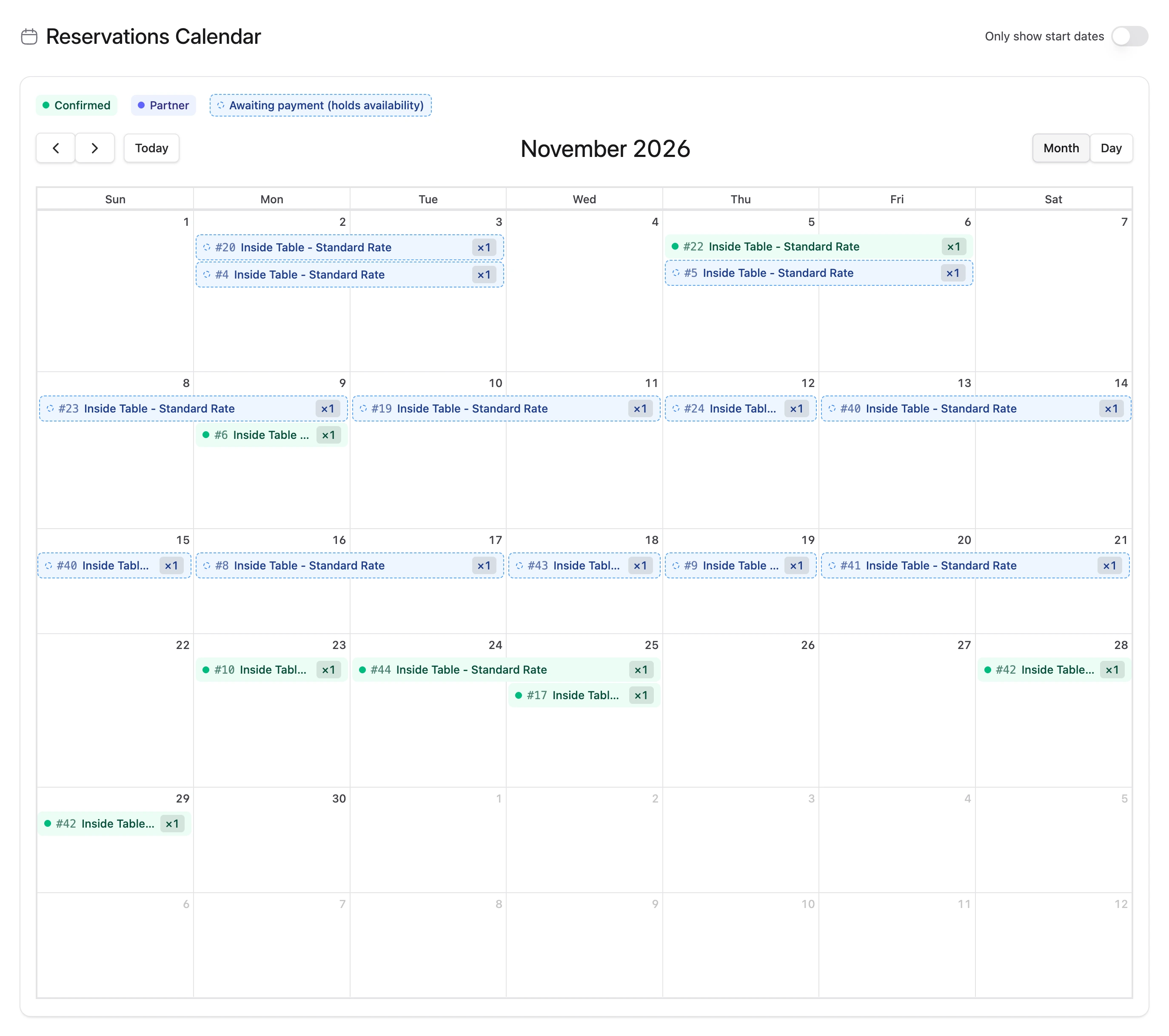
The Reservations Calendar shows awaiting-payment reservations that took stock with a dashed border. Hover over one to see its deadline.
Reports
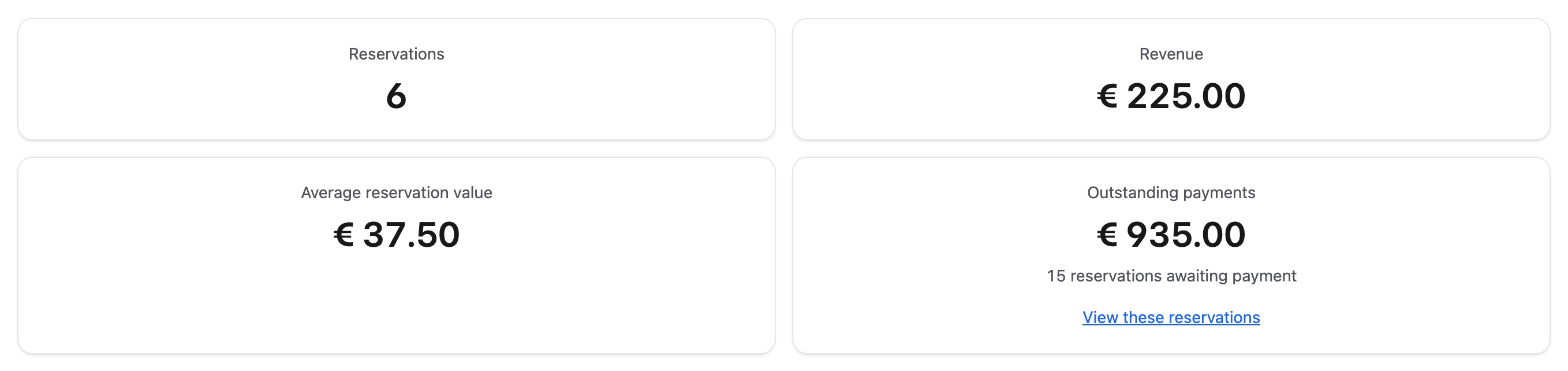
Reports have an Outstanding payments card with the total still awaiting payment in the report range, excluding surcharges, and how many reservations that is. It follows the report's date range and Filter by choice. View these reservations opens them in the listing. Awaiting-payment reservations only count as revenue once paid.
Activity log
The activity log records a manual reservation's stock changes like any other booking's. It adds two reasons: Created in the Control Panel, and Confirmed in the Control Panel (when you mark it as paid, or create one that collects nothing). Cancellations are logged as Reservation cancelled, and payments through the link as Confirmed by payment webhook.
The log doesn't record which user acted. Check Created by on the reservation page instead.
Export
On the Export page, tick Awaiting payment in the Status filter to include these reservations. The CSV status column holds awaiting_payment.
Refunds and reconciliation
Refunding a paid manual reservation
Refund a Confirmed manual reservation from the listing as usual (see Refunds). If it was paid through the payment link, the gateway refunds it. If it collected nothing, it's cancelled instead.
If you marked it as paid, Resrv can't return the money, so you return it yourself. The reservation becomes Refunded, its page shows a Return the payment manually notice, and the refund email tells the customer the payment will be returned separately.
Customers can't cancel a booking you marked as paid from the Reservation Status page. Bookings paid through the link follow the normal self-cancellation rules.
Reconciliation alerts
An online payment can cross with one of your actions, for example when the customer pays just as you cancel. Resrv then emails your admins an alert with a recommended action.
If a payment was going through when you or the sweep cancelled the reservation, the alert is "Captured payment on a cancelled reservation". The customer is told the charge will be refunded, so refund it in your provider's dashboard. Resrv doesn't do it automatically.
If you mark a booking as paid that the customer also paid online, Resrv keeps the online payment's reference and sends "Possible duplicate payment". Refund the duplicate in your provider.
If you mark a booking as paid and Resrv can't verify the customer's online payment, the alert is "Payment intent could not be verified". If it can't cancel a payment the customer could still complete, it's "Open payment intent could not be cancelled". Check the payment in your provider and cancel it if it's still open.
After a cancellation, a payment Resrv couldn't confirm as cancelled is flagged in the Control Panel and logged, without an email. Your admins are emailed only if the payment method is no longer configured ("Payment intent could not be verified"), or if the payment later goes through ("Orphaned payment detected").
Flagged reservations show a red warning icon in the listing and a Check this payment with your payment provider alert on their page. If you refund one later, Resrv checks the kept payment first and refunds through the gateway only if it went through.
Emails
| What happens | The customer receives | Your admins receive |
|---|---|---|
| Created, collecting a payment, email switch on | The payment request | Nothing |
| Created, collecting nothing | The confirmation (if the switch is on) | The new reservation email |
| Send / Resend payment request, or Extend hold with the email box ticked | The payment request | Nothing |
| Paid through the link, or marked as paid | The confirmation | The new reservation email |
| Cancelled by you | A cancellation notice, if ticked | Nothing |
| Hold lapsed (sweep) | A "payment not received" cancellation | A "payment hold lapsed" notice |
| Cancelled while an online payment was going through | A notice that the charge will be refunded, even if you unticked the box | A reconciliation alert |
The payment request uses the new Customer payment request event (customer_payment_request), which is enabled by default. The other emails use existing events: Customer confirmed and Admin made for confirmations, Customer cancelled (no refund) for cancellation notices, and Admin cancelled (by customer) for the lapsed-hold admin notice. Disabling one of these also silences the matching manual reservation email.
Manual reservation emails covers what each email says and how to customize it.
Limitations and FAQ
Can one manual reservation cover several entries? No. It books one entry with one rate, so create one reservation per entry.
Can I apply a coupon? No. Use Override total to give a special price.
Can I edit a reservation after creating it? No. Its dates, price, requested amount and payment method are fixed. Cancel it and create a new one.
Can I change the affiliate's commission? No. It's calculated from the affiliate's settings, as at checkout.
Does Resrv collect the remaining balance of a deposit? No. You collect it the way you normally would.
Can customers see an awaiting-payment reservation on the reservation status page? No. The Reservation Status page leaves them out, so the payment link is the customer's way in. Once paid, the booking shows there as Confirmed.
What if the customer pays after the hold lapsed? If the sweep hasn't run yet and the payment was started before the deadline, the webhook confirms it as usual. If the sweep already cancelled the reservation, your admins get a reconciliation alert and you refund the payment in your provider's dashboard.
Can I edit availability on dates with an unpaid reservation? Yes. If the reservation is later cancelled or lapses, its quantity is added back on top of the value you set, as when a confirmed booking is refunded. You can't delete availability while an awaiting-payment reservation that took stock overlaps the dates, or delete an entry that has any awaiting-payment reservation.
DEVELOPER NOTE
Manual reservations use the awaiting_payment status (ReservationStatus::AWAITING_PAYMENT), which can only move to confirmed or cancelled. Control Panel confirmations dispatch ReservationConfirmed with ReservationConfirmed::VIA_CP and a $notifyCustomer flag. It's false when a booking that collects nothing was created with Send confirmation email off. Cancellations dispatch ReservationCancelled with a context (CONTEXT_UNPAID_HOLD, CONTEXT_HOLD_LAPSED or CONTEXT_PAYMENT_IN_FLIGHT) and a $notifyCustomer flag. Custom listeners that email customers on either event should honour the flag. Gateway changes are covered in Writing a custom payment gateway.
Related
- Payment page: where your customers pay.
- Reservations: the listing, refunds, calendar, reports and export.
- Payment gateways: surcharges, amount limits and the Offline gateway.
- Emails: customize the payment request and the other reservation emails.
- Upgrading: migrations and gateway updates for v6.5.