

Payment Page NEW
The reservation-payment Livewire component is the page where customers pay for a reservation you created in the Control Panel. They open it from a signed link, without logging in. It shows what they owe, then takes the payment online or tells them how to pay you. The gateway's webhook confirms the booking afterwards.
The page was added in v6.5. You only need it for manual reservations paid online.
Setting up the page
Create an entry for the page at any URL, for example
/pay. It must be published, not private, and have a URL, or Resrv treats it as missing.Add the component to the entry's template:
antlers{{ livewire:reservation-payment }}Or, in a Blade template:
blade<livewire:reservation-payment />Both the
<livewire:...>and the Antlers{{ livewire:... }}syntaxes work. The component takes no attributes and needs no other component on the page.Go to Resrv → Settings → Checkout → Manual reservations and select the entry as the Payment Page Entry. The same section holds the optional Offline Payment Instructions (see Offline payment methods).
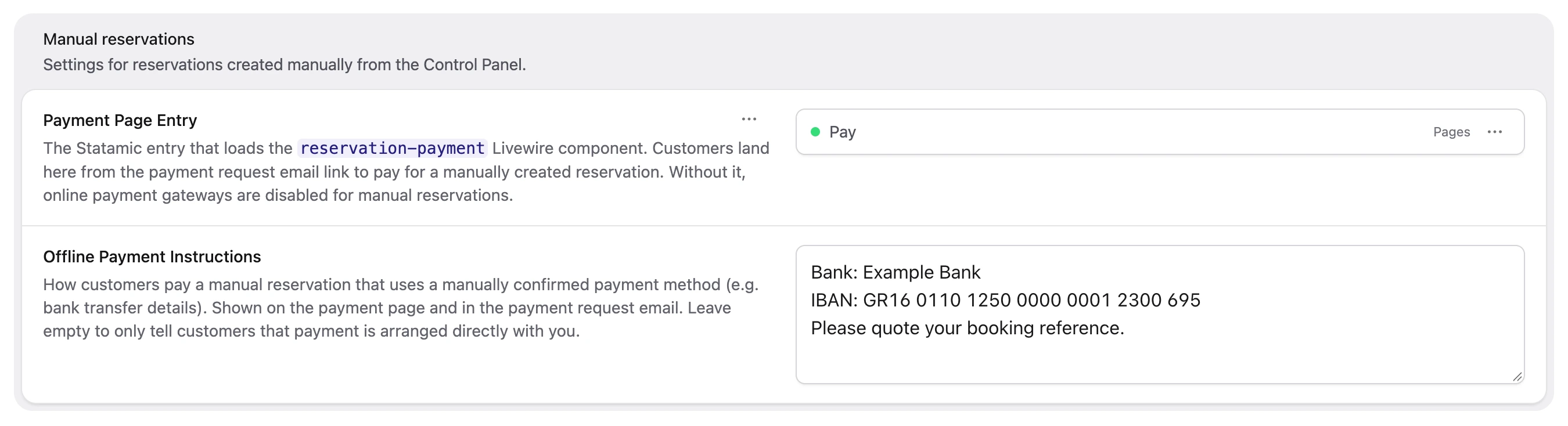
ONLINE METHODS NEED THIS PAGE
Without a usable Payment Page Entry, online payment methods are disabled on the Create reservation page and the Control Panel shows no payment link. Payment requests for online methods are refused too, so keep the entry published.
USE YOUR CHECKOUT LAYOUT
For card payments, the page renders the same gateway form as your checkout. Give the entry a layout that loads the same assets as your checkout page: Livewire's styles and scripts, the Resrv frontend assets and, for Stripe, Stripe's JavaScript.
The payment link
Customers reach the page through a personal link like this:
https://yoursite.com/pay?ref=ABC123&hash=...How customers get the link
For online methods, the payment request email has a Pay now button with the link. For offline methods, it has your payment instructions instead. You customize it through the Customer payment request event in Emails, and the manual reservations email table lists when it's sent.
You can also copy the link from the Control Panel while the payment window is open, for example to show offline customers their instructions on the page. A link the customer already has keeps working after the window closes, but opens a page explaining what happened.
Security
The hash is an HMAC of the reservation and the customer's email address, signed with your Laravel app.key. It ties the link to that one booking, so no login is needed and a leaked link can't be used for another reservation. The reservation status page uses the same scheme.
There's no lookup form. A missing, incomplete or tampered link shows one neutral notice that never says why it failed, so nobody can use the page to find out which references exist.
RATE LIMITING
Failed link checks are limited to 10 attempts per IP and reference, and 30 per IP across all references, each decaying after about 10 minutes. Once a limit is hit, even a valid link shows the neutral notice until it decays. These limits are separate from the reservation status page's.
KEEP YOUR APP KEY AND PAYMENT PAGE STABLE
The hash depends on config('app.key'), so rotating the key invalidates every payment link you've sent. Send the payment requests again afterwards.
Don't change the payment entry's URL, or unpublish or delete it, while reservations are awaiting payment, because links already emailed point at the old URL. If you have to, select the new page as the Payment Page Entry and send the payment requests again.
What the customer sees
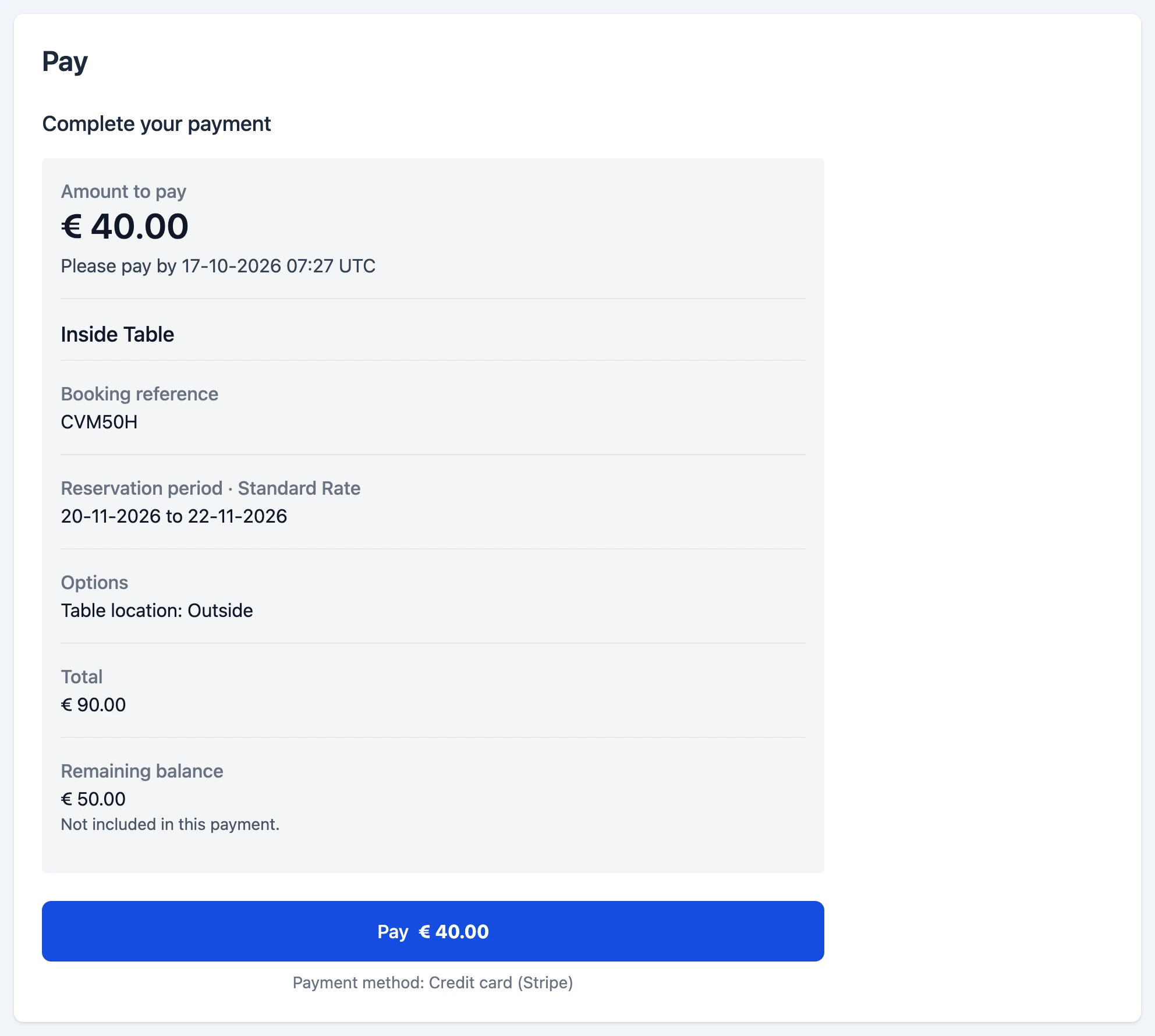
While the reservation can be paid, the page shows the Amount to pay, which is the amount you requested plus any payment surcharge. Later price changes don't affect it. Below it are the booking details and, when the reservation is on hold, a "Please pay by" line (see Payment deadlines).
When you requested less than the total, or the method adds a surcharge, the page also shows the Total and the Payment surcharge or Remaining balance rows. Last comes a Pay button for online methods, or your payment instructions for offline ones.
In every other state, the page shows a message with only the entry title, booking reference and reservation period. If the entry has been deleted, "Your booking" replaces the title.
Page states
| Heading | When | What the customer sees |
|---|---|---|
| Complete your payment | Awaiting payment, online method, payment window open | The details above and a Pay button with the amount. |
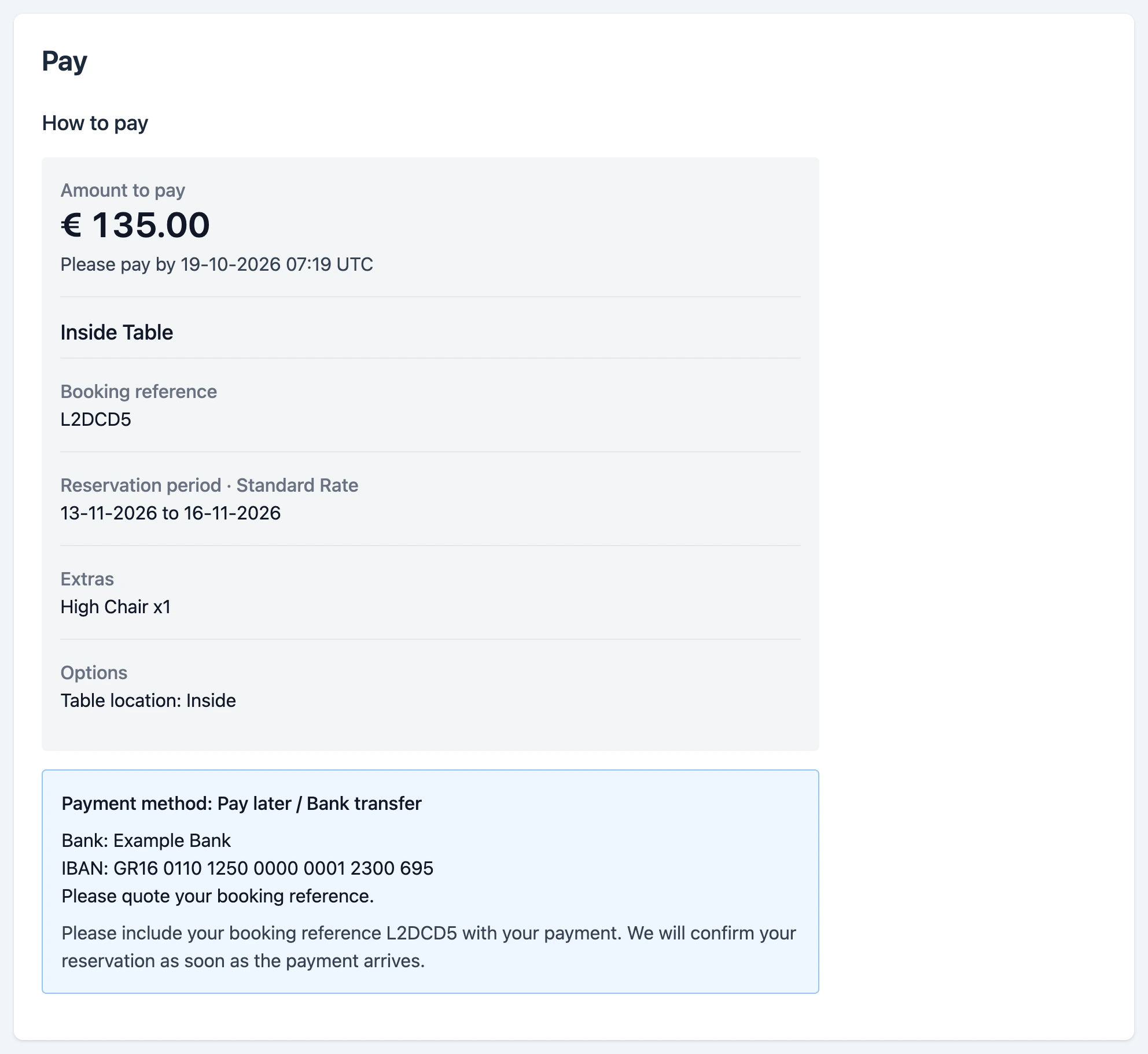
| How to pay | Awaiting payment, offline method, payment window open | The details above and your payment instructions (see Offline payment methods). |
| Payment processing | The customer is back from the payment provider, or a payment is already going through | A note that a confirmation email will follow. |
| Reservation confirmed | The reservation is Confirmed | A note that it's already paid. |
| Payment link expired | The hold deadline has passed | A request to contact you, and your contact details. |
| Payment link expired | The arrival day has ended | A note that it can no longer be paid online, and your contact details. |
| Reservation unavailable | The reservation was cancelled or refunded | A request to contact you, and your contact details. |
| (no heading) | The link is missing, broken, tampered with or rate limited | The neutral notice from Security, and your contact details. |
A confirmed reservation always shows Reservation confirmed. A customer coming back from the payment provider sees Payment processing even if the deadline passed while they were paying.
The contact details are the Email and Phone from Resrv → Settings → General, each shown only when filled in. Both ship with placeholder values, so replace them with your own.
Paying online
Pay starts a payment for the stored amount, with the method you chose when creating the reservation. Customers can't switch methods.
Inline gateways such as Stripe show their checkout payment form on the page. Redirect gateways send the customer to the provider's payment page. Either way, the customer then returns to the payment link, which shows Payment processing, or the Pay button again if the payment failed.
Custom and add-on gateways such as Mollie need a release that supports the v6.5 PaymentInterface changes. These add the return URL that brings the customer back here, and retrieving a payment intent to resume an interrupted payment.
If the payment can't be started, the customer sees "We could not start the payment process" and Resrv logs the error (see Troubleshooting).
Resuming an interrupted payment
Resrv remembers the payment it started for a reservation and checks it with the provider before starting another. If it can still be completed, the page resumes it. If it already went through or is still processing, the page shows Payment processing. If the provider cancelled it or it no longer exists, Resrv creates a new one.
CACHE LOCKS REQUIRED
Payment attempts are serialized with a cache lock (Cache::lock()). The file, database, redis, memcached, dynamodb and array cache stores support locks, but apc doesn't. On a store without locks, every online payment on this page fails with "We could not start the payment process". If you run more than one app server, use a shared store (redis, database or memcached).
The webhook confirms the booking
Payment processing is only an interim message. The reservation stays Awaiting payment until the gateway's webhook reports the payment. It then becomes Confirmed and the usual confirmation emails go out.
The page uses the same webhook as checkout, so there's nothing extra to configure. If the webhook isn't working, the customer's card is charged but the reservation stays Awaiting payment. See Setup the webhook for Stripe, and Webhook routes.
Offline payment methods
For an offline (manually confirmed) method, such as the bundled Offline gateway, the page has no Pay button. Under How to pay, it shows your Offline Payment Instructions, for example your bank details, and asks the customer to include their booking reference with the payment. If you left the setting empty, it asks them to contact you for payment details instead, and shows your contact details.
The instructions are shown as plain text with line breaks kept. HTML isn't rendered. The payment request email includes the same instructions. When the money arrives, confirm the reservation with Mark as paid.
Payment deadlines
Payment closes at the hold deadline, if there is one, or at the end of the arrival day, whichever comes first. See Payment deadlines in the manual reservations guide for both, and for the sweep that cancels lapsed holds.
The "Please pay by" line only appears when the reservation is on hold. It shows the earlier cut-off in your app's time zone, for example "Please pay by 17-10-2026 07:27 UTC", or "Please pay by the end of your arrival day: …".
When a cut-off passes, the page shows Payment link expired, even before the sweep runs. After the sweep cancels the reservation, it shows Reservation unavailable. If you use Extend hold in between, the customer's existing link accepts payments again until the new deadline.
Customizing
The view is published together with the other checkout views:
php artisan vendor:publish --tag=resrv-checkout-viewsThe page uses two files:
resources/views/vendor/statamic-resrv/livewire/reservation-payment.blade.php: the page itself.resources/views/vendor/statamic-resrv/livewire/components/partials/business-contact.blade.php: the email and phone lines shown with the notices.
There's no view attribute, so edit the published files directly. The card form shown after Pay is the gateway's own payment view (livewire/checkout-payment.blade.php for Stripe). Checkout uses the same view, so changes to it apply to both.
Translations
The component uses these frontend keys, which you can override as described in Languages. Only English ships, so add them to every locale you have published:
| Key | Default |
|---|---|
completeYourPayment | Complete your payment |
paymentHeadingInstructions | How to pay |
paymentHeadingProcessing | Payment processing |
paymentHeadingConfirmed | Reservation confirmed |
paymentHeadingExpired | Payment link expired |
paymentHeadingUnavailable | Reservation unavailable |
amountToPay | Amount to pay |
paymentDueBy | Please pay by :date |
paymentDueByArrival | Please pay by the end of your arrival day: :date |
remainingBalance | Remaining balance |
remainingBalanceNote | Not included in this payment. |
paymentMethodIs | Payment method: :method |
contactPhone | Phone |
paymentLinkFailed | We couldn't open your reservation from that link. Please check the link in your email or contact us for assistance. |
paymentLinkExpired | This payment link has expired. Please contact us to arrange your booking. |
paymentArrivalPassed | The arrival date for this reservation has passed, so it can no longer be paid online. Please contact us to arrange your booking. |
paymentAlreadyCompleted | This reservation has already been paid and confirmed. Thank you! |
paymentProcessing | Your payment is being processed. You will receive a confirmation email as soon as it completes. |
paymentUnavailable | This reservation is no longer available for payment. Please contact us for assistance. |
paymentOfflineInstructions | Please include your booking reference :reference with your payment. We will confirm your reservation as soon as the payment arrives. |
paymentOfflineNoInstructions | This reservation is not paid online: payment is arranged directly with us. Please contact us for the payment details and quote your booking reference :reference. We will confirm your reservation as soon as the payment arrives. |
paymentMountFailed | We could not start the payment process. Please try again or contact us for assistance. |
:date is replaced with the deadline, :method with the payment method's label and :reference with the booking reference. frontend.php also defines paymentDeadline (Payment deadline), which the page doesn't currently use.
The view also reuses these existing keys: pay, bookingReference, emailAddress, reservationPeriod, to, extras, options, total, paymentSurcharge and reservationItemUnavailable (shown in place of a deleted entry's title). The card form uses checkout's payment keys: payment, paymentDescription and toCompleteYourReservation.
Troubleshooting
- "We couldn't open your reservation from that link": the link is incomplete or altered,
app.keyhas changed since it was sent, or too many failed attempts came from the same IP. Copy the link from the reservation page or send the payment request again. - "We could not start the payment process": check your logs. Common causes are a cache store without lock support, a payment method removed from your gateway config after the reservation was created, or a payment provider error.
- The card form doesn't appear after clicking Pay: the entry's layout probably doesn't load Stripe's JavaScript (see Setting up the page).
- Stuck on "Payment processing": the webhook hasn't arrived. Check your webhook setup and the provider's webhook logs.
- "Payment page not configured" on the reservation page: no Payment Page Entry is set, or the entry is unpublished, private or has no URL.
Related
- Manual reservations: create reservations and request payment.
- Payment gateways: online and offline methods, surcharges and webhook routes.
- Stripe: the JavaScript and webhook used for card payments.
- Emails: customize the payment request email.
- Reservation status: the self-service page for confirmed bookings.
- Languages: translate the page.