

Cutoff Rules
Cutoff rules stop bookings a set number of hours before a reservation starts. Use them when your staff need time to prepare, for example "no bookings within 3 hours of a 16:00 start".
Enabling the Feature
Cutoff rules are off by default. To turn them on, go to Resrv → Settings → Engine settings in the Control Panel and turn on Enable cutoff rules.
This sets the enable_cutoff_rules config key (default false). While it's off, the Resrv Cutoff field returns false on the frontend and no validation runs, even if your entries have rules.
The Resrv Cutoff Field
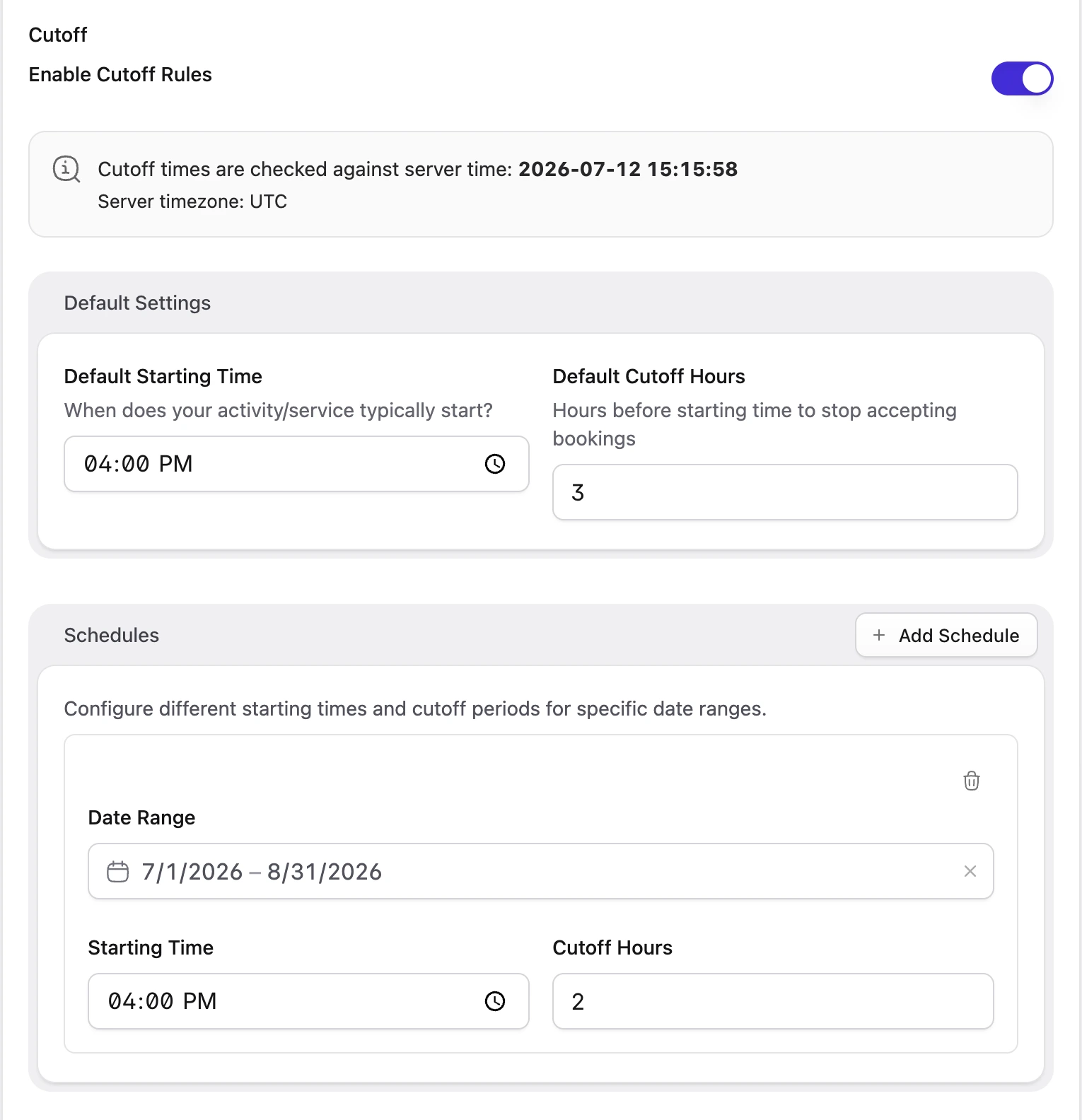
With the feature enabled, add a Resrv Cutoff field to your Blueprint.
| Setting | Type | Default | Description |
|---|---|---|---|
| Enable cutoff | Toggle | false | Turns cutoff rules on for this entry. |
| Default Starting Time | Time | 16:00 | When the activity or service usually starts. |
| Default Cutoff Hours | Integer | 3 | How many hours before the starting time bookings stop (0 to 240). |
| Schedules | Repeatable | None | Optional overrides for specific dates (see below). |
Schedules
Schedules override the defaults for a date range, for example a later starting time in summer. Each schedule has:
| Setting | Type | Description |
|---|---|---|
| Date Range | Range | The dates this schedule covers. |
| Starting Time | Time | Replaces the default starting time. |
| Cutoff Hours | Integer | Replaces the default cutoff hours (0 to 240). |
Dates outside every schedule use the defaults.
INFO
Cutoff rules are stored on each entry, even when the field is on a Collection blueprint.
How It Works
Bookings for a date close at its starting time minus the cutoff hours. With a 16:00 start and 3 cutoff hours, they close at 13:00 that day. Times use your application's timezone (config('app.timezone')).
The check runs automatically in Availability Results, the multiple-results flow and the Availability Collection component. A date past its cutoff shows this error:
Reservations are allowed at least :hours hours before the starting time (:time). Please select a date from tomorrow onwards.
:hours and :time come from the matching schedule. You can change the message with the cutoffTimeExceeded translation key. See Languages.
Displaying the Cutoff Error in Custom Views
The error goes to the cutoff error bag, separate from the availability error. The stock availability-results.blade.php and the multi-results view already show it, under a youAreTooLate heading:
@if ($errors->has('cutoff') && $data->hasDates())
    <div class="flex flex-col py-4">
        <dt class="text-lg font-medium">{{ trans('statamic-resrv::frontend.youAreTooLate') }}</dt>
        <dd class="mb-1 text-gray-500">{{ $errors->first('cutoff') }}</dd>
    </div>
@endif
OVERRIDING STOCK VIEWS
If you've customised availability-results.blade.php, keep this block. Without it, dates past their cutoff can't be booked and the visitor sees no message.
The resrv:cutoff Antlers Tag
The {{ resrv:cutoff }} tag returns an entry's cutoff details for a date, for example to show a "last booking time".
{{ resrv:cutoff }}
    {{ if has_cutoff_rules }}
        Last booking by {{ cutoff_time }}
    {{ /if }}
{{ /resrv:cutoff }}
Both parameters are optional:
| Parameter | Default | Description |
|---|---|---|
entry | The current entry's id from context | The Statamic entry ID to look up. |
date | Today's date (Y-m-d) | The reservation date to check. |
{{ resrv:cutoff entry="{id}" date="2026-07-01" }}
    ...
{{ /resrv:cutoff }}
Variables:
| Variable | Type | Description |
|---|---|---|
has_cutoff_rules | Boolean | Whether a cutoff schedule applies for this entry and date. |
starting_time | String | The starting time, like 16:00. null when no rules apply. |
cutoff_time | String | The cutoff time in H:i format (starting time minus cutoff hours). |
cutoff_datetime | String | The full cutoff datetime as an ISO 8601 string. |
cutoff_hours | Integer | The cutoff hours used for this date. |
schedule_name | String | The name of the matched schedule, or Default Schedule when the defaults apply. |
is_past_cutoff | Boolean | Whether the cutoff has already passed. |
If the feature is off, the entry has no cutoff rules, or no schedule matches the date, has_cutoff_rules is false and the time fields are null.
Related
- Availability: the availability your cutoff rules apply to.
- Availability Results: where cutoff errors are shown.
- Languages: translate the cutoff error.
- Configuration: the Engine settings with the global toggle.